

Force Run overrides are available for GitHub Actions workflows. Buildkite is not supported yet.
When to force a job
- You changed something the history can’t see, such as a config, a dependency, or an environment change that affects a job Dynamic CI would skip.
- You want fresh signal before review, for example a slow integration suite you want green before asking for approval.
- An agent needs proof: an agent fixing a specific failure can require the affected job to run on its next push to confirm the fix.
Browser extension
The Trunk browser extension for Chrome and Firefox adds Dynamic CI controls directly to the checks list on the GitHub pull request page. It is the same extension that powers the Trunk merge queue panel, so if your team already uses it, there is nothing extra to install.Chrome Web Store
Chrome, plus Chromium browsers like Edge, Brave, and Arc.
Firefox Add-ons
Firefox 140+ on desktop, Firefox 142+ on Android.
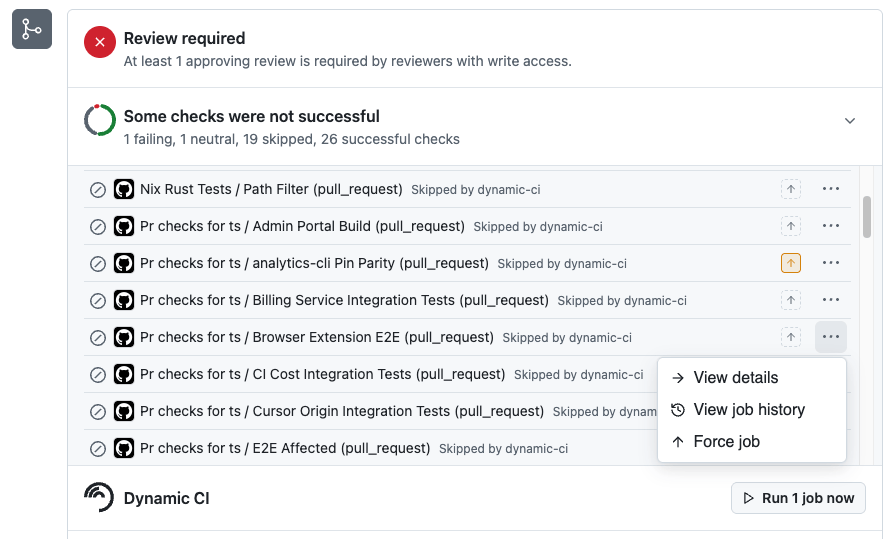
See what Dynamic CI skipped
Every job Dynamic CI skipped is labeled Skipped by dynamic-ci in GitHub’s checks list, so you can tell at a glance which checks were skipped on purpose and which never ran for another reason.Force a job
1
Open the pull request on GitHub
Expand the checks list in the merge box to see each job and its status.
2
Mark the jobs to force
Click the up-arrow button next to a skipped job to mark it as Force Run. The button is highlighted once the job is selected. You can also open the ⋯ menu on the job and choose Force job.
3
Run the jobs
In the Dynamic CI row at the bottom of the checks list, click Run N job now, where N is the number of jobs you marked. The forced jobs start without waiting for another push.
Investigate a job
The ⋯ menu on each job also offers:- View details: open the job’s details.
- View job history: see how the job has run on recent pull requests, to judge whether forcing it is worthwhile.
Trunk web app
The same Force Run controls are available on the pull request view in the Trunk web app, so you can set overrides without the extension.1
Open the pull request in Trunk
In app.trunk.io, open the pull request.
2
Mark jobs as Force Run
Select the dynamically managed jobs, or whole workflows, that should always run on this pull request.
3
Save
The override applies to the pull request’s next push or rerun.
API
Agents and automation can set Force Run through the Trunk API. For example, an agent that is fixing a failing job can mark that job as Force Run before it pushes, so the fix is always verified even if Dynamic CI would otherwise skip it. Authenticate with your organization’s API token from Settings → Organization → General.API reference details for Force Run are coming soon.
How overrides interact with Dynamic CI
- Overrides always win. A job marked Force Run runs regardless of Trunk’s recommendation, just like your paths filters and per-job policies.
- Overrides are per pull request. Forcing a job on one pull request does not change how Dynamic CI treats it anywhere else.
- The merge queue is unaffected. The merge queue applies its own, stricter rules no matter which jobs ran on the pull request.