> ## Documentation Index
> Fetch the complete documentation index at: https://docs.trunk.io/llms.txt
> Use this file to discover all available pages before exploring further.
# Asana integration
> Triage your flaky tests faster by creating automatically assigned and labeled tasks with the Asana integration
When Trunk Flaky Tests [detects a flaky test](../../detection/index), you can create an automatically generated Asana task for your team to pick up and fix the test.
Asana tasks are created in a single project that you choose during setup. Throughout this page, "ticket" and "task" mean the same thing — Trunk calls it a ticket, Asana calls it a task.
## Connecting to Asana
To connect an Asana project:
1. In the Trunk app, navigate to **Settings** → **Repositories** → **\[your repository]** → **Ticketing**.
2. Click **Connect** on the **Asana** row.
3. Add an [Asana personal access token](#personal-access-token) and click **Connect**.
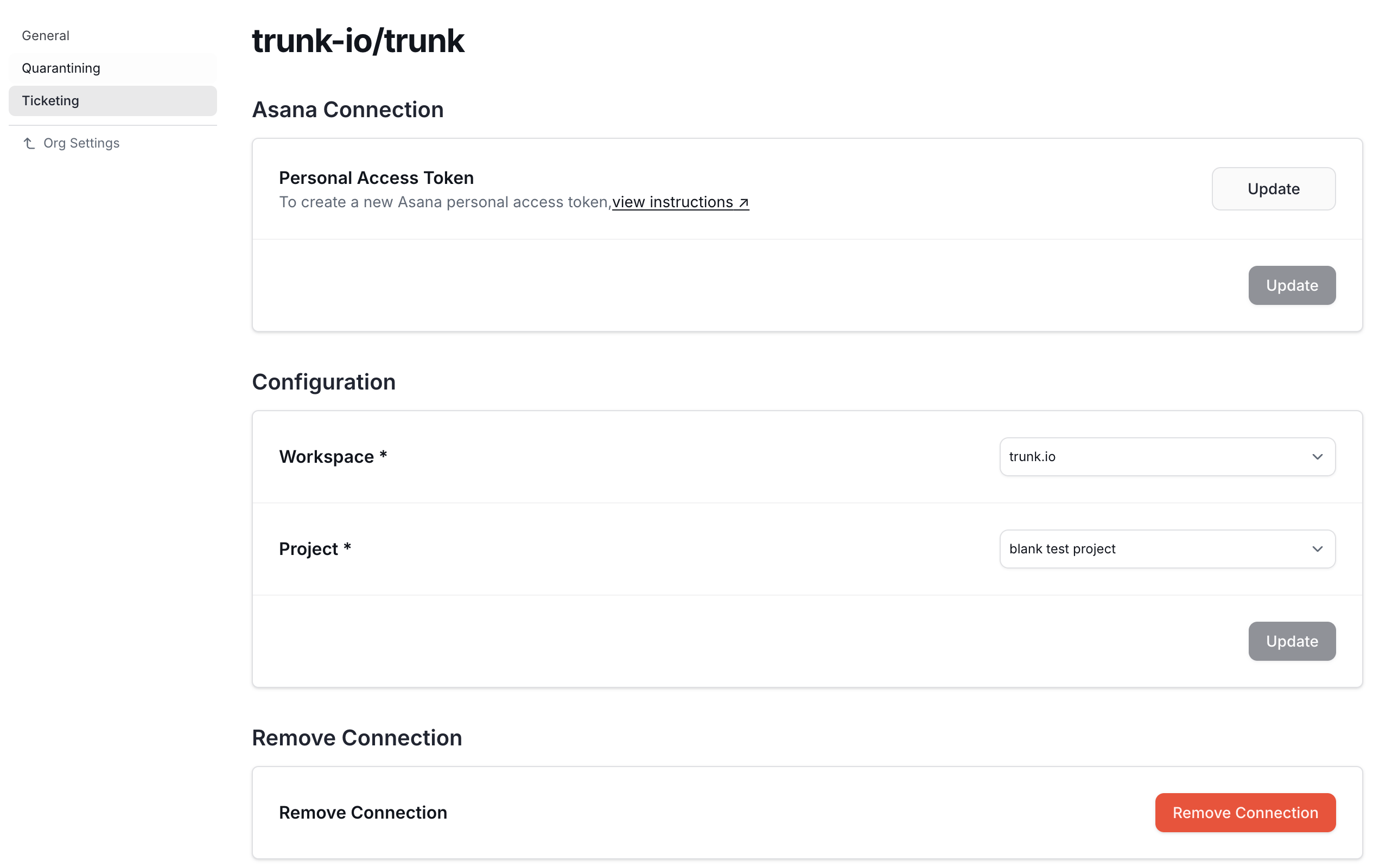
4. In the **Configuration** section that appears, select a **Workspace**, then select a **Project**, and click **Update**.
Connecting happens in two steps because Trunk cannot list your workspaces until the token works. Until you save the token, the form shows only the **Asana Connection** section — the **Configuration** section, with its **Workspace** and **Project** dropdowns, appears once the token is accepted. The integration is not usable until you have selected both.
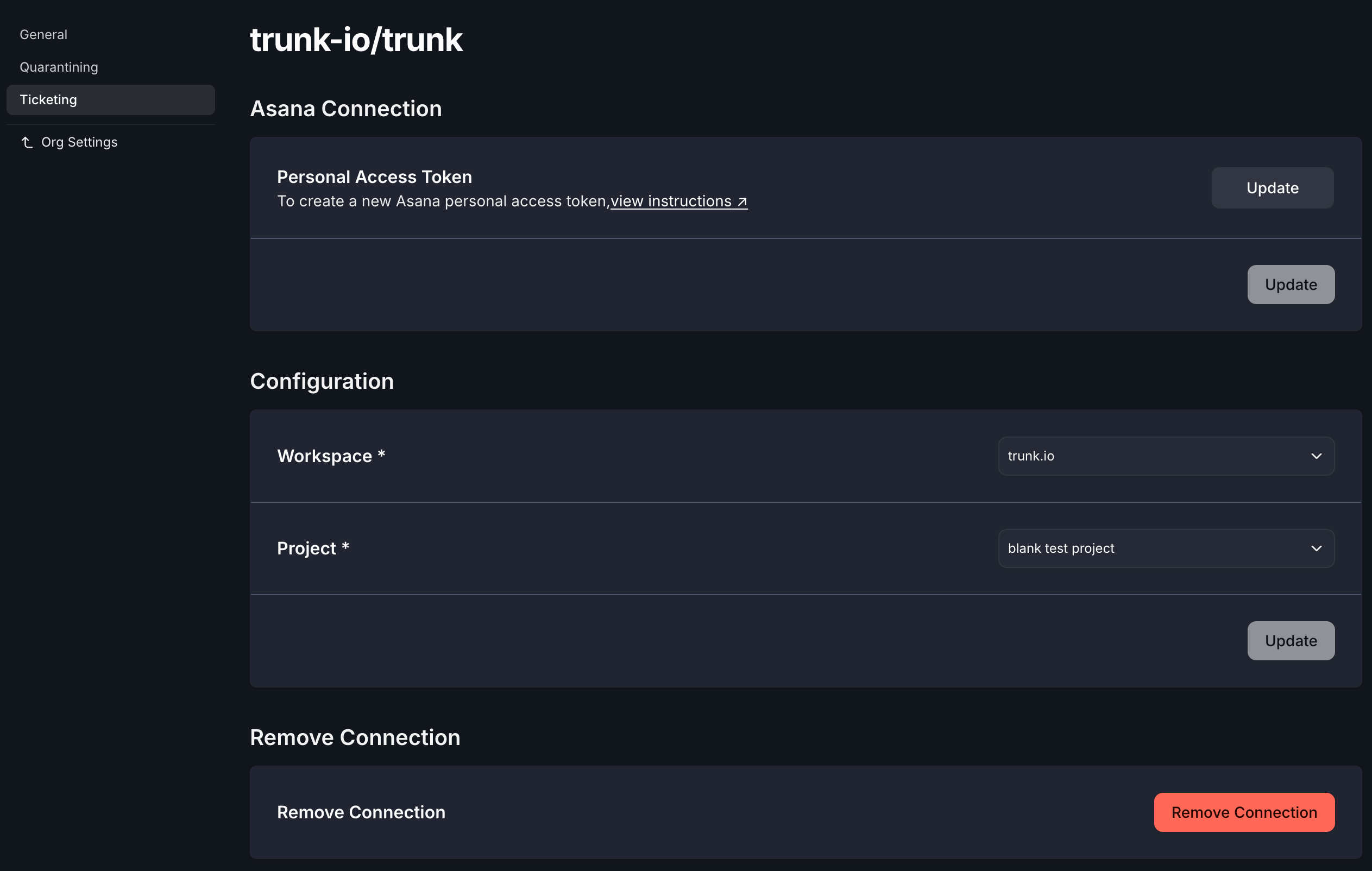
A fully connected integration shows all three sections:
 ### Personal access token
Create a personal access token from your [Asana developer console](https://app.asana.com/0/my-apps).
Asana personal access tokens have no granular scopes — a token acts as the person who created it, with that person's permissions. The token must belong to someone who can see the workspace and project you want to file tickets in, and who can create tasks there.
Tickets are created and updated by the token's owner, so that person appears as the author of every automated ticket and comment. Use a service account if you would rather the activity not be attributed to an individual.
## Statuses are project sections
Asana has no workflow states. Trunk uses your project's **sections** — the columns on a board, such as `To do`, `In progress`, and `Done` — as the ticket status. A ticket's status is whichever section it sits in.
Asana tracks completion separately from sections: a task has a **Completed** checkbox that is independent of which column it is in. Trunk treats a ticket as closed only when **both** are true:
* the task is marked complete, **and**
* the task sits in the section you configured as the close target.
This matches exactly what Trunk does when it closes a ticket itself, so a ticket that Trunk closed always reads as closed. It also means a task somebody ticks complete while leaving it in another column is not treated as closed, and neither is a card dragged to the close column without being completed.
Because Asana sections carry no built-in meaning, Trunk cannot tell which of your columns represents "done". Both the close and reopen dropdowns list every section in the project, and you choose. A column named `Shipped` or `Released` works exactly as well as one named `Done`.
## Ticket automation
Once the integration is fully configured, you can enable [automatic ticketing](./automatic-ticketing) from the same settings page: Trunk will create Asana tasks when tests become flaky or broken, reopen them on regression, and close them when tests return to healthy.
When Trunk closes a ticket, it marks the task complete and moves it to your configured close section. When it reopens one, it clears the completed flag and moves the task to your configured reopen section.
## Create a new ticket
You can create a new ticket for any test listed in Flaky Tests.
There are 2 ways to create a new ticket in the Flaky Tests dashboard:
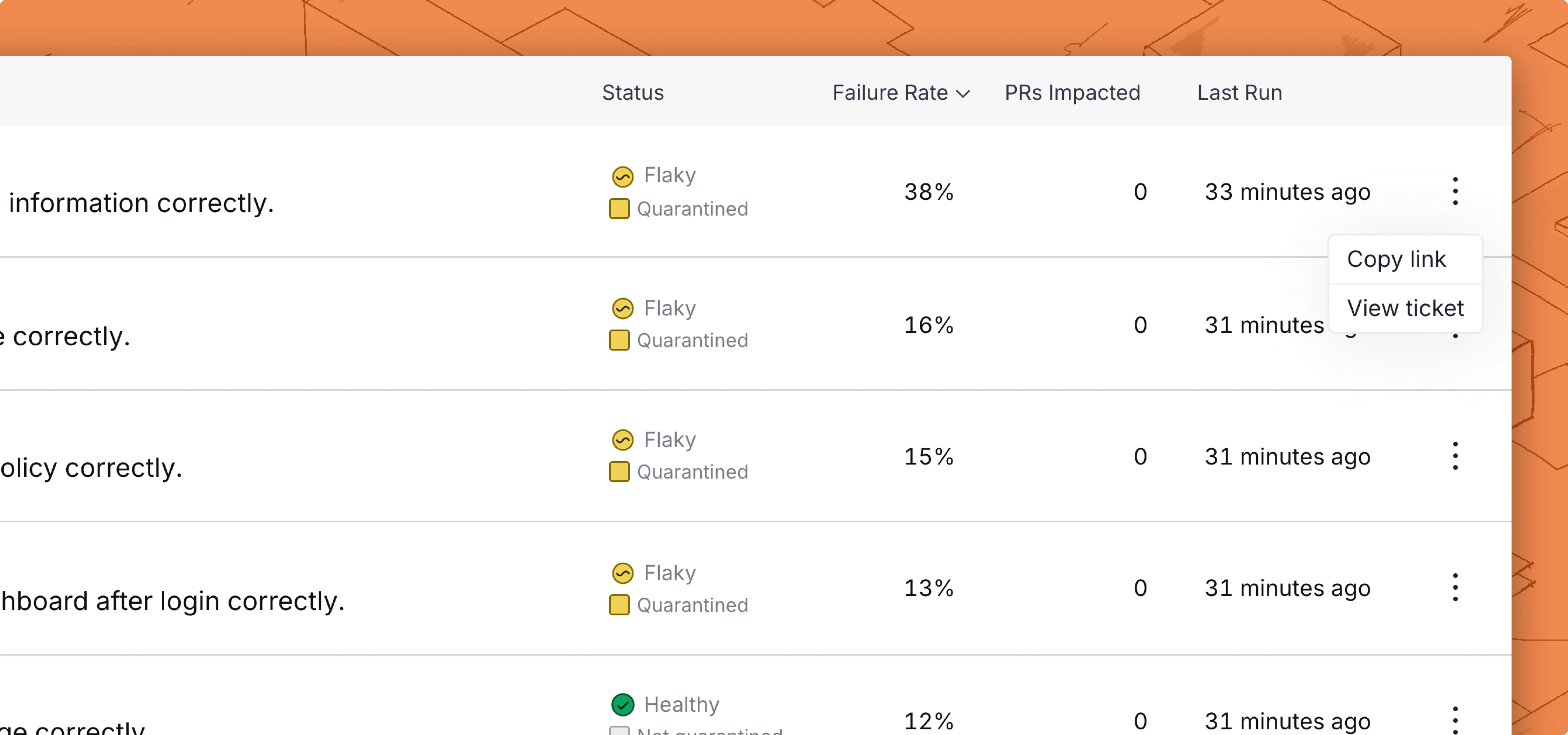
* Click on the options menu for any test case on the repo overview dashboard
### Personal access token
Create a personal access token from your [Asana developer console](https://app.asana.com/0/my-apps).
Asana personal access tokens have no granular scopes — a token acts as the person who created it, with that person's permissions. The token must belong to someone who can see the workspace and project you want to file tickets in, and who can create tasks there.
Tickets are created and updated by the token's owner, so that person appears as the author of every automated ticket and comment. Use a service account if you would rather the activity not be attributed to an individual.
## Statuses are project sections
Asana has no workflow states. Trunk uses your project's **sections** — the columns on a board, such as `To do`, `In progress`, and `Done` — as the ticket status. A ticket's status is whichever section it sits in.
Asana tracks completion separately from sections: a task has a **Completed** checkbox that is independent of which column it is in. Trunk treats a ticket as closed only when **both** are true:
* the task is marked complete, **and**
* the task sits in the section you configured as the close target.
This matches exactly what Trunk does when it closes a ticket itself, so a ticket that Trunk closed always reads as closed. It also means a task somebody ticks complete while leaving it in another column is not treated as closed, and neither is a card dragged to the close column without being completed.
Because Asana sections carry no built-in meaning, Trunk cannot tell which of your columns represents "done". Both the close and reopen dropdowns list every section in the project, and you choose. A column named `Shipped` or `Released` works exactly as well as one named `Done`.
## Ticket automation
Once the integration is fully configured, you can enable [automatic ticketing](./automatic-ticketing) from the same settings page: Trunk will create Asana tasks when tests become flaky or broken, reopen them on regression, and close them when tests return to healthy.
When Trunk closes a ticket, it marks the task complete and moves it to your configured close section. When it reopens one, it clears the completed flag and moves the task to your configured reopen section.
## Create a new ticket
You can create a new ticket for any test listed in Flaky Tests.
There are 2 ways to create a new ticket in the Flaky Tests dashboard:
* Click on the options menu for any test case on the repo overview dashboard
 * Use the Create ticket button in the top left corner of the [test case details](../../dashboard#test-case-details) page.
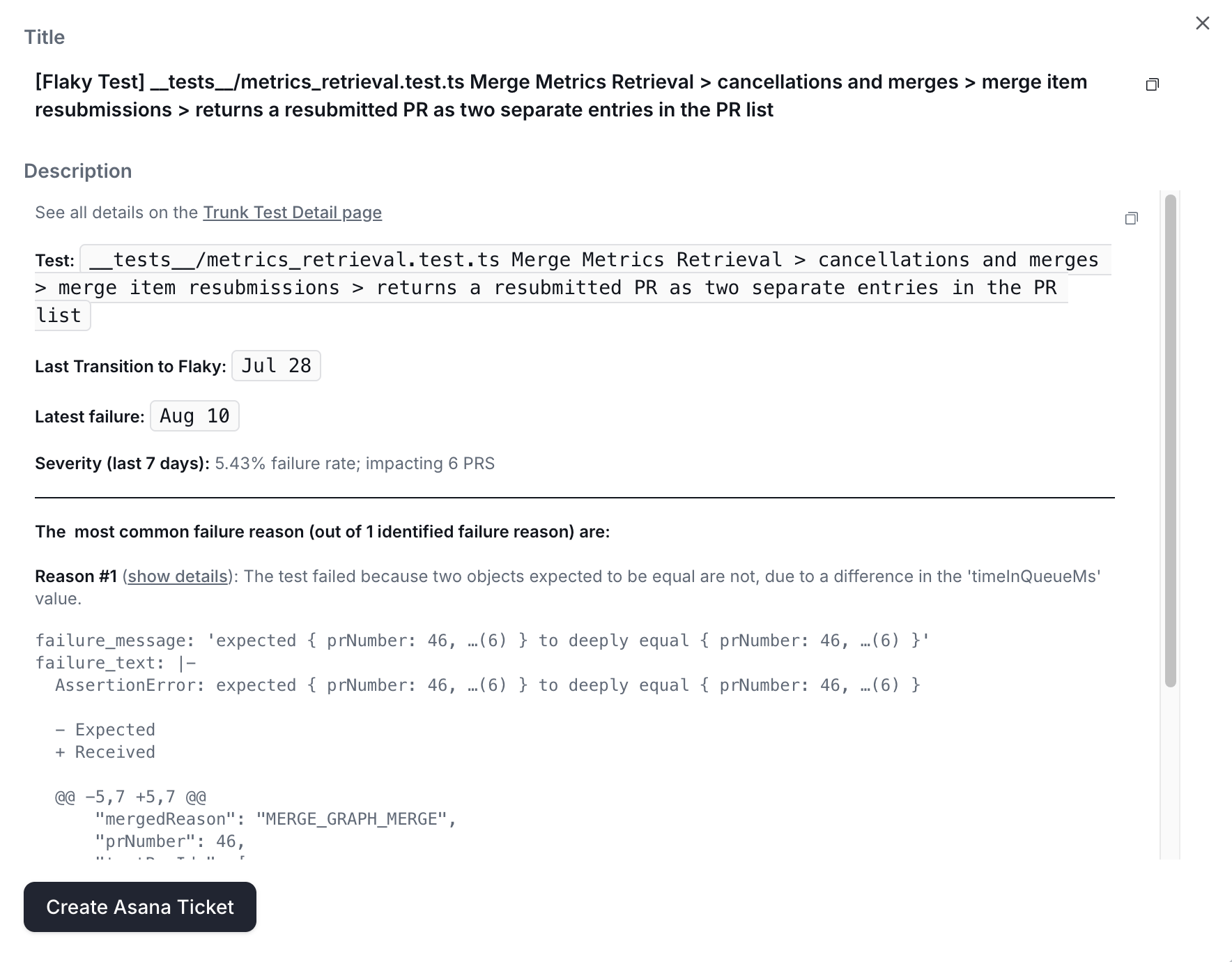
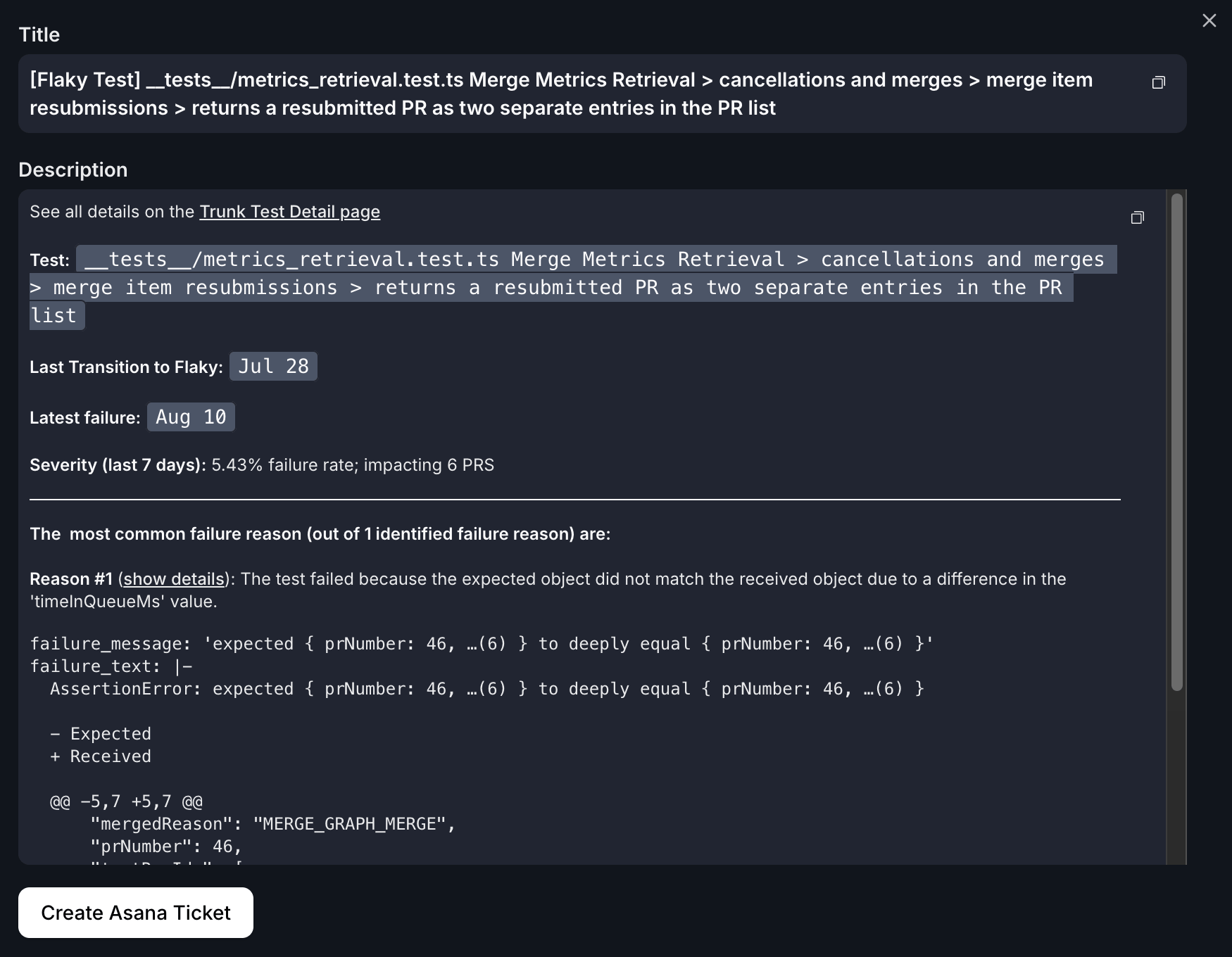
Before you create the ticket, you get a preview of the title and description.
* Use the Create ticket button in the top left corner of the [test case details](../../dashboard#test-case-details) page.
Before you create the ticket, you get a preview of the title and description.
 ### Create with Asana
If you are connected to Asana, you can click the **Create Asana Ticket** button at the end of the modal to create a task in the configured project with any field defaults you have set.
## Field defaults
After selecting a project, you can configure default values that pre-populate whenever a new Asana task is created from Flaky Tests. The available fields are your project's **custom fields**.
Trunk supports these Asana custom field types:
| Asana field type | Behavior |
| ----------------- | -------------------------------- |
| **Single-select** | Choose one option as the default |
| **Multi-select** | Choose one or more options |
| **Text** | Free text |
| **Number** | Numeric value |
| **People** | Choose one or more people |
Date and reference fields are not supported and do not appear in the list. Formula and custom-ID fields are also omitted — Asana calculates those and rejects any attempt to write them.
Custom fields belong to a project, so changing the selected **Project** clears every configured default. Choose the project first, then set defaults.
Field defaults are saved per repository. When you open the **Create Ticket** modal, all configured defaults are pre-filled and can be overridden before submitting.
### Requiring fields at ticket creation
For each field, you can check **Require user to fill at creation** instead of setting a default value. When this option is on, the field appears in the **Create Ticket** modal as a required input, and the create button stays disabled until the user fills every required field.
This is useful for fields whose right value depends on the specific test being triaged and should not be pre-set globally.
Automatic ticketing cannot answer a create-time prompt. If you turn on auto-create, every required field needs a default, and Trunk blocks the save until they have one.
## Link existing tickets to tests
If you already have an Asana task for a test, you can link it directly from the Test Details page without creating a new one.
**From the UI:**
1. Open the test case details page.
2. Click **Link Ticket** in the top-left corner.
3. Enter the Asana task ID and click **Link Ticket**.
The task ID is the long number in the task's URL. For `https://app.asana.com/1/12345/project/67890/task/1217199000848901`, the task ID is `1217199000848901`.
The task must be in the project you configured. Linking a task from a different project is rejected, because Trunk reads its status from that project's sections and would have no status to show.
**Via API:**
You can also link tickets programmatically using the [Link Ticket to Test Case API](../../reference/api-reference#post-flaky-tests-link-ticket-to-test-case).
## How linked tickets appear
On the test case details page, a linked Asana ticket shows as **Ticket** with its current status and assignee, linking out to the task in Asana.
Asana has no short human-readable key like Jira's `TRUNK-123`, and the generated task name (`[Flaky Test] `) is too long to display, so Trunk shows a generic label rather than a truncated title.
### Create with Asana
If you are connected to Asana, you can click the **Create Asana Ticket** button at the end of the modal to create a task in the configured project with any field defaults you have set.
## Field defaults
After selecting a project, you can configure default values that pre-populate whenever a new Asana task is created from Flaky Tests. The available fields are your project's **custom fields**.
Trunk supports these Asana custom field types:
| Asana field type | Behavior |
| ----------------- | -------------------------------- |
| **Single-select** | Choose one option as the default |
| **Multi-select** | Choose one or more options |
| **Text** | Free text |
| **Number** | Numeric value |
| **People** | Choose one or more people |
Date and reference fields are not supported and do not appear in the list. Formula and custom-ID fields are also omitted — Asana calculates those and rejects any attempt to write them.
Custom fields belong to a project, so changing the selected **Project** clears every configured default. Choose the project first, then set defaults.
Field defaults are saved per repository. When you open the **Create Ticket** modal, all configured defaults are pre-filled and can be overridden before submitting.
### Requiring fields at ticket creation
For each field, you can check **Require user to fill at creation** instead of setting a default value. When this option is on, the field appears in the **Create Ticket** modal as a required input, and the create button stays disabled until the user fills every required field.
This is useful for fields whose right value depends on the specific test being triaged and should not be pre-set globally.
Automatic ticketing cannot answer a create-time prompt. If you turn on auto-create, every required field needs a default, and Trunk blocks the save until they have one.
## Link existing tickets to tests
If you already have an Asana task for a test, you can link it directly from the Test Details page without creating a new one.
**From the UI:**
1. Open the test case details page.
2. Click **Link Ticket** in the top-left corner.
3. Enter the Asana task ID and click **Link Ticket**.
The task ID is the long number in the task's URL. For `https://app.asana.com/1/12345/project/67890/task/1217199000848901`, the task ID is `1217199000848901`.
The task must be in the project you configured. Linking a task from a different project is rejected, because Trunk reads its status from that project's sections and would have no status to show.
**Via API:**
You can also link tickets programmatically using the [Link Ticket to Test Case API](../../reference/api-reference#post-flaky-tests-link-ticket-to-test-case).
## How linked tickets appear
On the test case details page, a linked Asana ticket shows as **Ticket** with its current status and assignee, linking out to the task in Asana.
Asana has no short human-readable key like Jira's `TRUNK-123`, and the generated task name (`[Flaky Test] `) is too long to display, so Trunk shows a generic label rather than a truncated title.