> ## Documentation Index
> Fetch the complete documentation index at: https://docs.trunk.io/llms.txt
> Use this file to discover all available pages before exploring further.
# Jira Data Center integration
> Create, link, and automate tickets for flaky tests in your self-managed Jira Data Center instance
When Trunk Flaky Tests [detects a flaky test](../../detection/index), you can create a ticket in your self-managed Jira Data Center instance for your team to pick up and fix the test. Trunk can also [manage the ticket automatically](./automatic-ticketing): create it when a test becomes flaky or broken, reopen it on regression, and close it when the test returns to healthy.
Using Jira Cloud (`*.atlassian.net`)? See the [Jira integration](./jira-integration) instead.
Jira Data Center support is enabled per organization. Contact [support@trunk.io](mailto:support@trunk.io) to turn it on for yours.
## Requirements
* **Jira Data Center 10.0 or later.** Jira Server, and Data Center releases before 10.0, are not supported. Trunk checks the version when you connect.
* **Reachable over HTTPS from the internet.** Trunk connects to your site from its cloud, so the site must accept HTTPS connections from the public internet. Instances reachable only on a private network or VPN are not supported.
* **An organization-level connection.** Jira Data Center connects under **Settings** → **Organization** → **Ticketing**, and each [test collection](/flaky-tests/test-collections) picks it as its default. It cannot be connected on a single repository's settings.
## Create a personal access token
Trunk authenticates with a Jira [personal access token](https://confluence.atlassian.com/enterprise/using-personal-access-tokens-1026032365.html) (PAT). Jira Data Center tokens have no scopes: a token acts as the user who created it, with that user's permissions. We recommend creating it from a dedicated service account rather than a person's account.
Give the account these permissions on the project Trunk files tickets into:
* *Browse projects*
* *Create issues*
* *Edit issues*
* *Transition issues*, plus any permission your workflow requires for the transitions Trunk uses to close and reopen tickets (commonly *Resolve issues* or *Close issues*)
* *Add comments*
* *Assign issues*, only if you set a default assignee
No global, project administrator, or Jira administrator permissions are needed. If issue-level security is configured, the account must also be able to see the issues Trunk manages.
Then, signed in as that account, open your profile in Jira, select **Personal Access Tokens**, and create a token. Set an expiry date that matches your rotation policy: when the token expires, Trunk marks the connection as needing new credentials, and you can paste a new token without reconfiguring anything else.
## Connecting to Jira Data Center
1. In the Trunk app, navigate to **Settings** → **Organization** → **Ticketing**.
2. Click **Add connection** and select **Jira Data Center**.
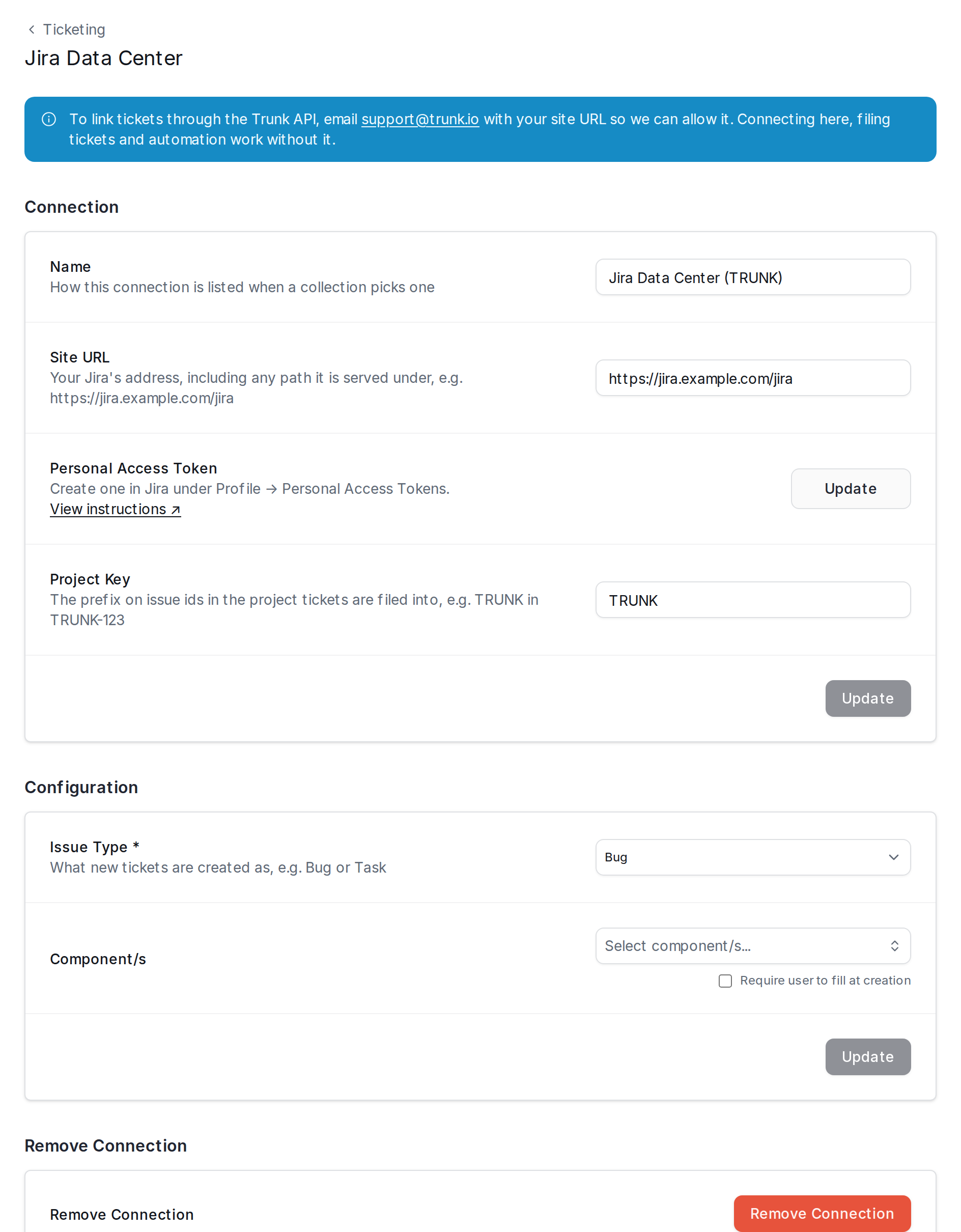
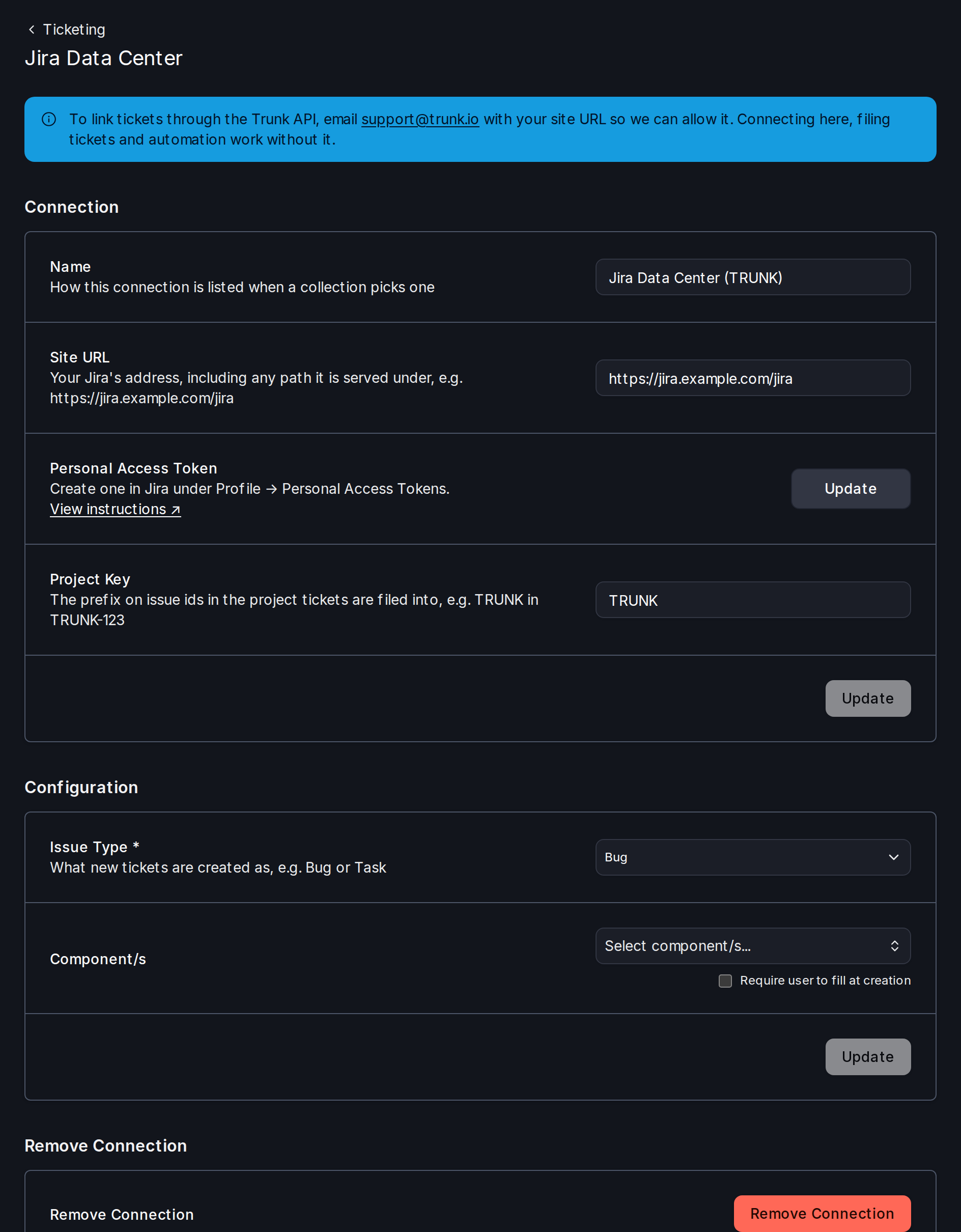
3. Complete the **Connection** section and click **Connect**:
| Field Name | Description | Example |
| - | - | - |
| Name | How this connection is listed when a collection picks one. | `Jira Data Center (TRUNK)` |
| Site URL | Your Jira's address, including any path it is served under. Must use `https://`. | `https://jira.example.com/jira` |
| Personal Access Token | The [token](#create-a-personal-access-token) you created. | |
| Project Key | The prefix on issue keys in the project tickets are filed into. | `TRUNK` in `TRUNK-123` |
4. In the **Configuration** section that appears, choose the **Issue Type** new tickets are created as, set any [field defaults](#custom-fields), and click **Update**.
Connecting happens in two steps because Trunk cannot read your project's issue types and fields until the token works.
 ### Using the Trunk API with Jira Data Center
Creating tickets from the Trunk app, linking them, and [automatic ticketing](./automatic-ticketing) work as soon as you connect. To link tickets through the [Link Ticket to Test Case API](/flaky-tests/reference/api-reference/link-a-ticket-to-a-test-case), email [support@trunk.io](mailto:support@trunk.io) with your site URL so we can allow it on our network; the connection form shows the same note.
## Ticket automation
Once the connection is configured, choose it as the default on each [test collection](/flaky-tests/test-collections) that should file tickets, then enable [automatic ticketing](./automatic-ticketing) from the collection's ticketing settings. Trunk closes and reopens tickets by moving them to the statuses you select there, using your project's workflow.
## Creating and linking tickets
Creating a ticket from a test, and linking an existing ticket, work the same way as for [Jira Cloud](./jira-integration#create-a-new-ticket). Ticket descriptions are written in Jira wiki markup, so formatting renders natively in Jira Data Center.
## Custom fields
Like the [Jira Cloud integration](./jira-integration#custom-fields), Trunk reads the fields available for the selected issue type and lets you set a default for each supported field, or mark it to be filled in when a ticket is created.
| Jira field | Input type |
| - | - |
| Text fields | Text input |
| Number fields | Number input |
| Single-select fields | Searchable dropdown |
| User fields, such as assignee | User picker |
| Labels | Chip input |
| Components | Multi-select |
User defaults are stored by Jira user key, so they keep working when a user is renamed. If a default user is deactivated, Trunk leaves that field empty rather than failing to create the ticket.
## Security and data access
* **Transport:** Trunk connects only over HTTPS, verifies your site's TLS certificate, does not follow redirects, and refuses to connect to private or internal network addresses.
* **Token storage:** the token is encrypted at rest and used only to call your site's REST API.
* **What Trunk reads:**
* your site's version;
* the token's own user and its permissions on the configured project;
* the project's issue types, field definitions, and statuses;
* for tickets Trunk created or that you linked: their key, summary, status, assignee, timestamps, change history, and available transitions;
* the project's assignable users, when you pick a default user.
* **What Trunk writes:** new issues in the configured project (summary, description, issue type, and your configured field defaults); updates to those fields on tickets Trunk manages; status transitions with an explanatory comment when automation is enabled; and an internal issue property that prevents duplicate tickets if a creation is retried.
* **What Trunk never does:** delete issues, or change projects, workflows, permissions, or users.
Revoking the token in Jira, or deactivating the service account, immediately ends Trunk's access.
## Troubleshooting
If **Connect** fails, the message says why:
| Message | What to do |
| - | - |
| `This is a Jira Cloud site; connect it as Jira Cloud` | Use the [Jira integration](./jira-integration). |
| `Jira Data Center 10.0 or later is required` | Upgrade Jira, or [copy the generated ticket content](./other-ticketing-platforms) in the meantime. |
| `Invalid Personal Access Token` | Create a new token, and check it has not expired. |
| `Invalid Project Key` | Check the key, and that the token's user can browse the project. |
| `The site refused the request; check that it accepts connections from Trunk` | Your site, or a proxy or firewall in front of it, rejected Trunk's request. |
| `Trunk connects to a Jira site only over https` | Enter the site URL with `https://`. |
| `The site redirected to …; enter that URL instead` | Enter the URL the message names, which is where your site actually serves Jira. |
| `… resolves to an address Trunk will not connect to` | The site URL resolves to a private or internal address. Trunk only connects to sites reachable from the internet. |
| `Could not reach the ticketing provider` | Check the site URL, and that the site is up and reachable from the internet. |
### Using the Trunk API with Jira Data Center
Creating tickets from the Trunk app, linking them, and [automatic ticketing](./automatic-ticketing) work as soon as you connect. To link tickets through the [Link Ticket to Test Case API](/flaky-tests/reference/api-reference/link-a-ticket-to-a-test-case), email [support@trunk.io](mailto:support@trunk.io) with your site URL so we can allow it on our network; the connection form shows the same note.
## Ticket automation
Once the connection is configured, choose it as the default on each [test collection](/flaky-tests/test-collections) that should file tickets, then enable [automatic ticketing](./automatic-ticketing) from the collection's ticketing settings. Trunk closes and reopens tickets by moving them to the statuses you select there, using your project's workflow.
## Creating and linking tickets
Creating a ticket from a test, and linking an existing ticket, work the same way as for [Jira Cloud](./jira-integration#create-a-new-ticket). Ticket descriptions are written in Jira wiki markup, so formatting renders natively in Jira Data Center.
## Custom fields
Like the [Jira Cloud integration](./jira-integration#custom-fields), Trunk reads the fields available for the selected issue type and lets you set a default for each supported field, or mark it to be filled in when a ticket is created.
| Jira field | Input type |
| - | - |
| Text fields | Text input |
| Number fields | Number input |
| Single-select fields | Searchable dropdown |
| User fields, such as assignee | User picker |
| Labels | Chip input |
| Components | Multi-select |
User defaults are stored by Jira user key, so they keep working when a user is renamed. If a default user is deactivated, Trunk leaves that field empty rather than failing to create the ticket.
## Security and data access
* **Transport:** Trunk connects only over HTTPS, verifies your site's TLS certificate, does not follow redirects, and refuses to connect to private or internal network addresses.
* **Token storage:** the token is encrypted at rest and used only to call your site's REST API.
* **What Trunk reads:**
* your site's version;
* the token's own user and its permissions on the configured project;
* the project's issue types, field definitions, and statuses;
* for tickets Trunk created or that you linked: their key, summary, status, assignee, timestamps, change history, and available transitions;
* the project's assignable users, when you pick a default user.
* **What Trunk writes:** new issues in the configured project (summary, description, issue type, and your configured field defaults); updates to those fields on tickets Trunk manages; status transitions with an explanatory comment when automation is enabled; and an internal issue property that prevents duplicate tickets if a creation is retried.
* **What Trunk never does:** delete issues, or change projects, workflows, permissions, or users.
Revoking the token in Jira, or deactivating the service account, immediately ends Trunk's access.
## Troubleshooting
If **Connect** fails, the message says why:
| Message | What to do |
| - | - |
| `This is a Jira Cloud site; connect it as Jira Cloud` | Use the [Jira integration](./jira-integration). |
| `Jira Data Center 10.0 or later is required` | Upgrade Jira, or [copy the generated ticket content](./other-ticketing-platforms) in the meantime. |
| `Invalid Personal Access Token` | Create a new token, and check it has not expired. |
| `Invalid Project Key` | Check the key, and that the token's user can browse the project. |
| `The site refused the request; check that it accepts connections from Trunk` | Your site, or a proxy or firewall in front of it, rejected Trunk's request. |
| `Trunk connects to a Jira site only over https` | Enter the site URL with `https://`. |
| `The site redirected to …; enter that URL instead` | Enter the URL the message names, which is where your site actually serves Jira. |
| `… resolves to an address Trunk will not connect to` | The site URL resolves to a private or internal address. Trunk only connects to sites reachable from the internet. |
| `Could not reach the ticketing provider` | Check the site URL, and that the site is up and reachable from the internet. |