> ## Documentation Index
> Fetch the complete documentation index at: https://docs.trunk.io/llms.txt
> Use this file to discover all available pages before exploring further.
# Linear integration
> Triage your flaky tests faster by creating automatically assigned and labeled tickets with the Linear integration
When Trunk Flaky Tests [detects a flaky test](../../detection/index), you can create an automatically generated Linear ticket for your team to pick up and fix the test.
Webhook payloads will also contain ticket information when a Linear ticket is created with the integration or when [existing tickets are linked](./linear-integration#link-existing-tickets-to-tests).
## Connecting to Linear
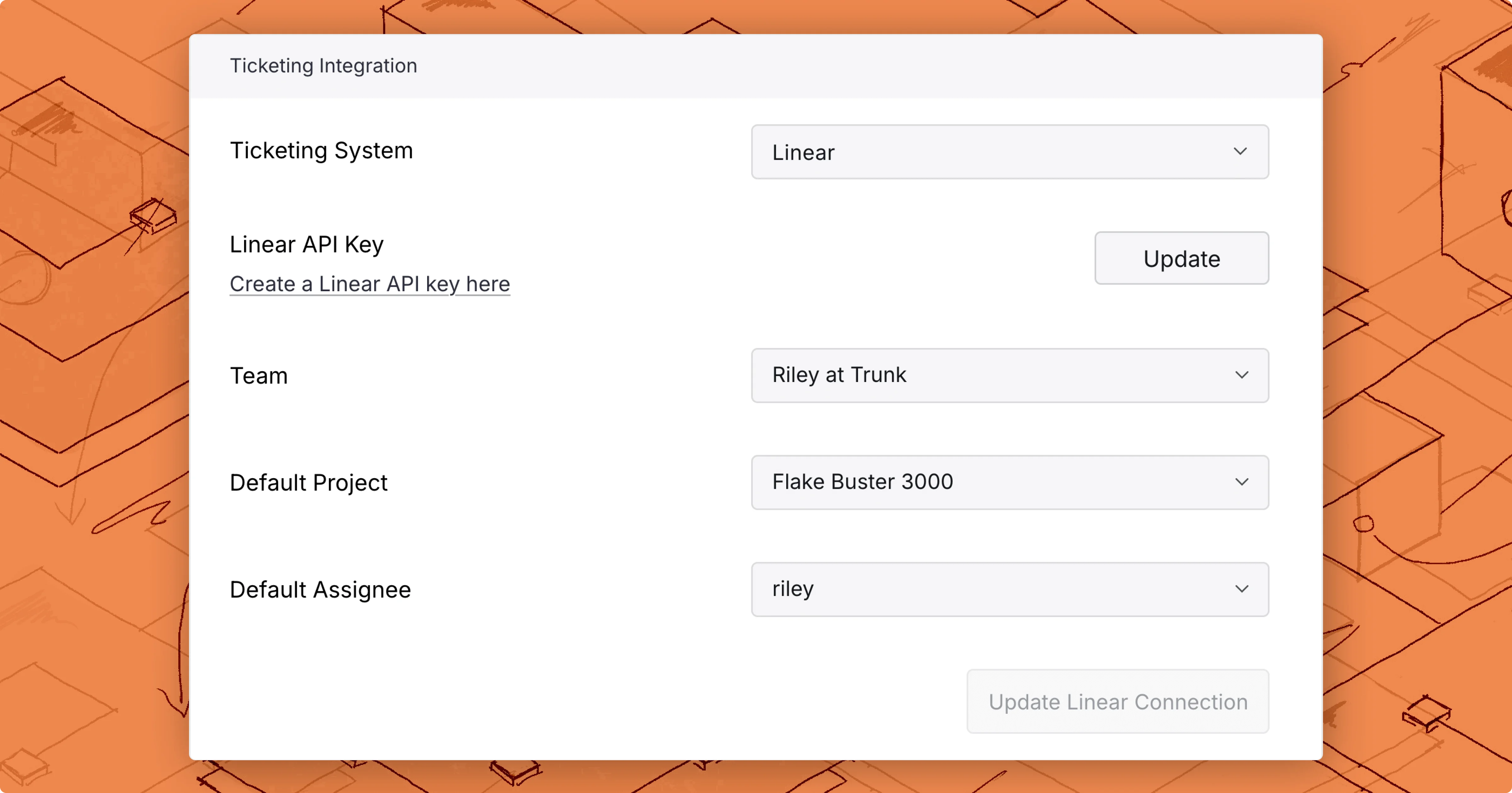
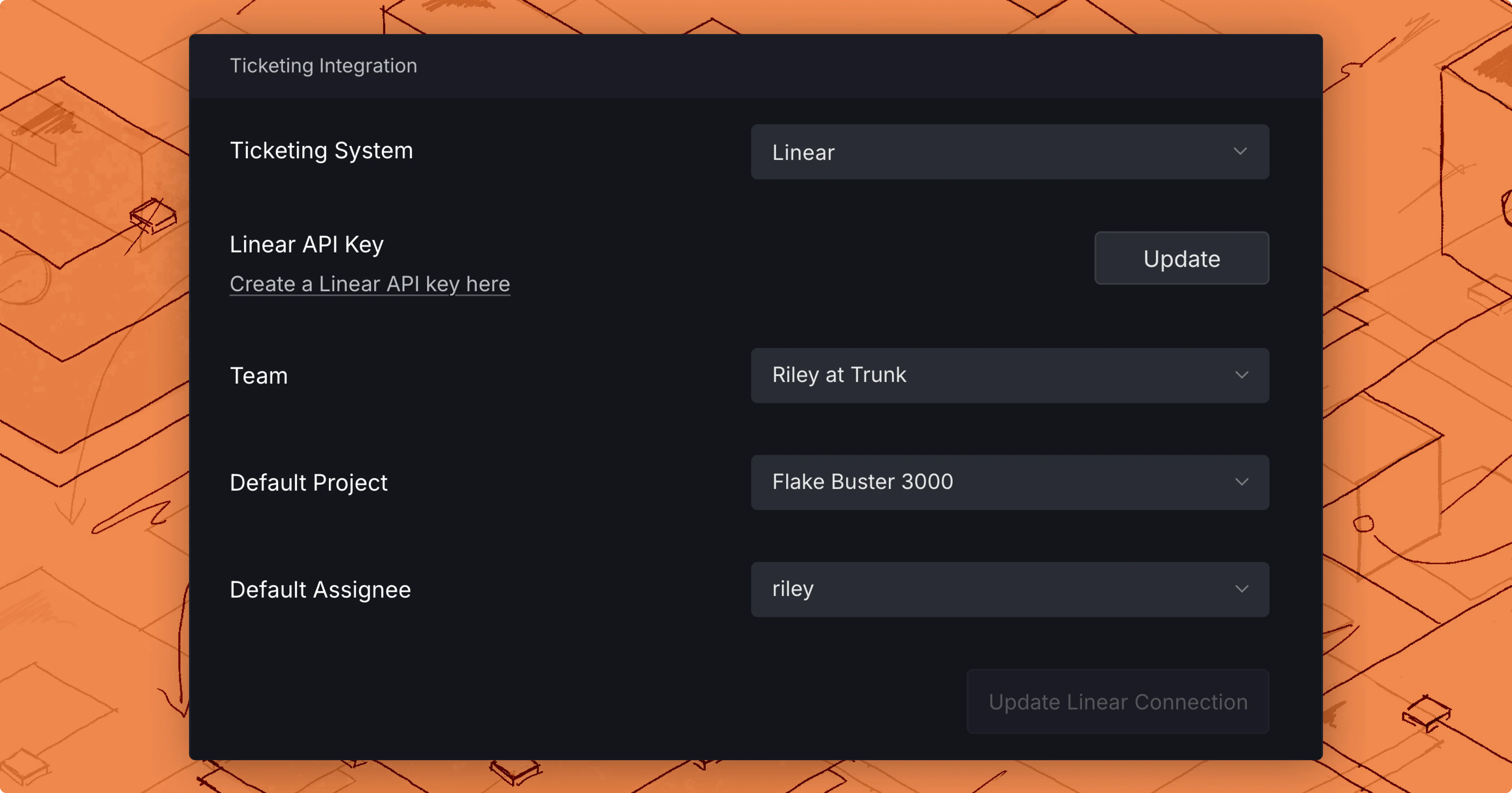 To connect a Linear project:
1. Navigate to **Settings** → **Repositories** → **\[your repository]** → **Ticketing**.
2. Select **Linear** as your Ticketing System.
3. Add a [Linear API key](./linear-integration#api-token-permissions)
4. Select a Team and **Connect to Linear**.
After connecting, you can configure field defaults for auto-created tickets — including Priority, Labels, Estimate, Project, and Assignee — all scoped to the selected team. See [Field defaults](#field-defaults) below.
### API Key permissions
The following project permissions must be granted to your Linear API key so Trunk can read, create, and assign tickets automatically:
* *Read*
* *Create issues*
Selecting *Full Access* will also grant the required permissions.
## Create a new ticket
You can create a new ticket for any test listed in Flaky Tests.
There are 2 ways to create a new ticket in the Flaky Tests dashboard:
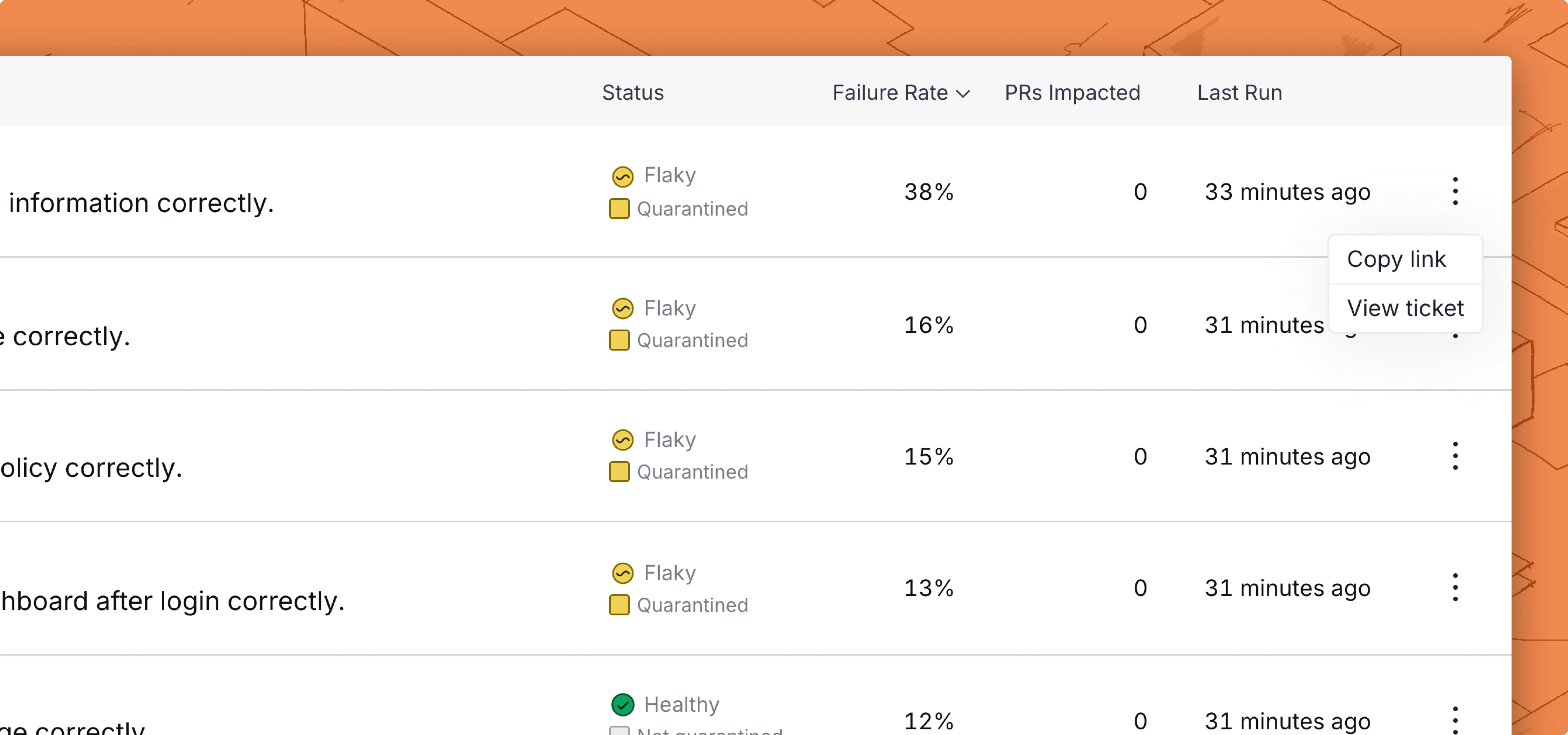
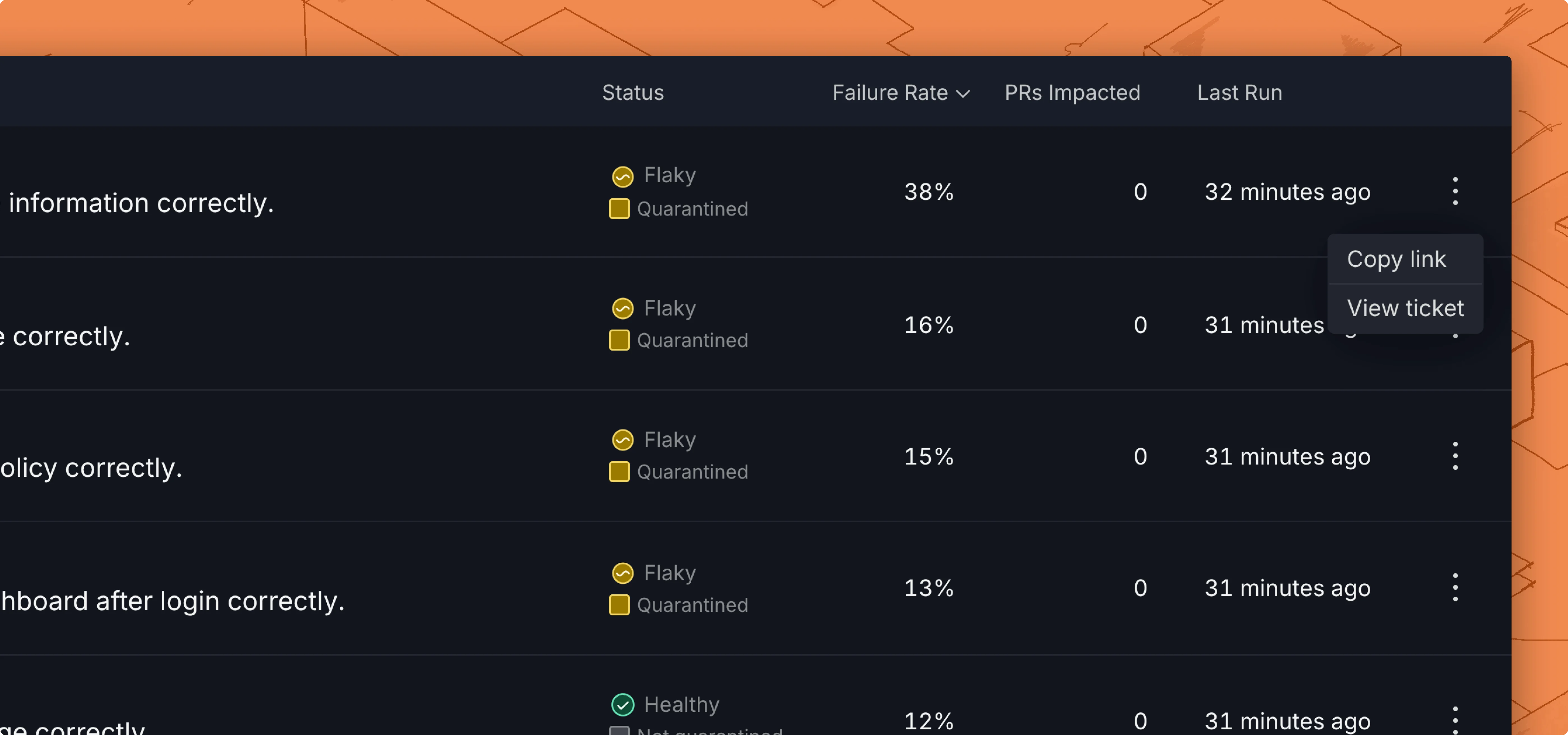
* Click on the options menu for any test case on the repo overview dashboard
To connect a Linear project:
1. Navigate to **Settings** → **Repositories** → **\[your repository]** → **Ticketing**.
2. Select **Linear** as your Ticketing System.
3. Add a [Linear API key](./linear-integration#api-token-permissions)
4. Select a Team and **Connect to Linear**.
After connecting, you can configure field defaults for auto-created tickets — including Priority, Labels, Estimate, Project, and Assignee — all scoped to the selected team. See [Field defaults](#field-defaults) below.
### API Key permissions
The following project permissions must be granted to your Linear API key so Trunk can read, create, and assign tickets automatically:
* *Read*
* *Create issues*
Selecting *Full Access* will also grant the required permissions.
## Create a new ticket
You can create a new ticket for any test listed in Flaky Tests.
There are 2 ways to create a new ticket in the Flaky Tests dashboard:
* Click on the options menu for any test case on the repo overview dashboard
 * Use the Create ticket button in the top left corner of the [test case details](../../dashboard#test-case-details) page.
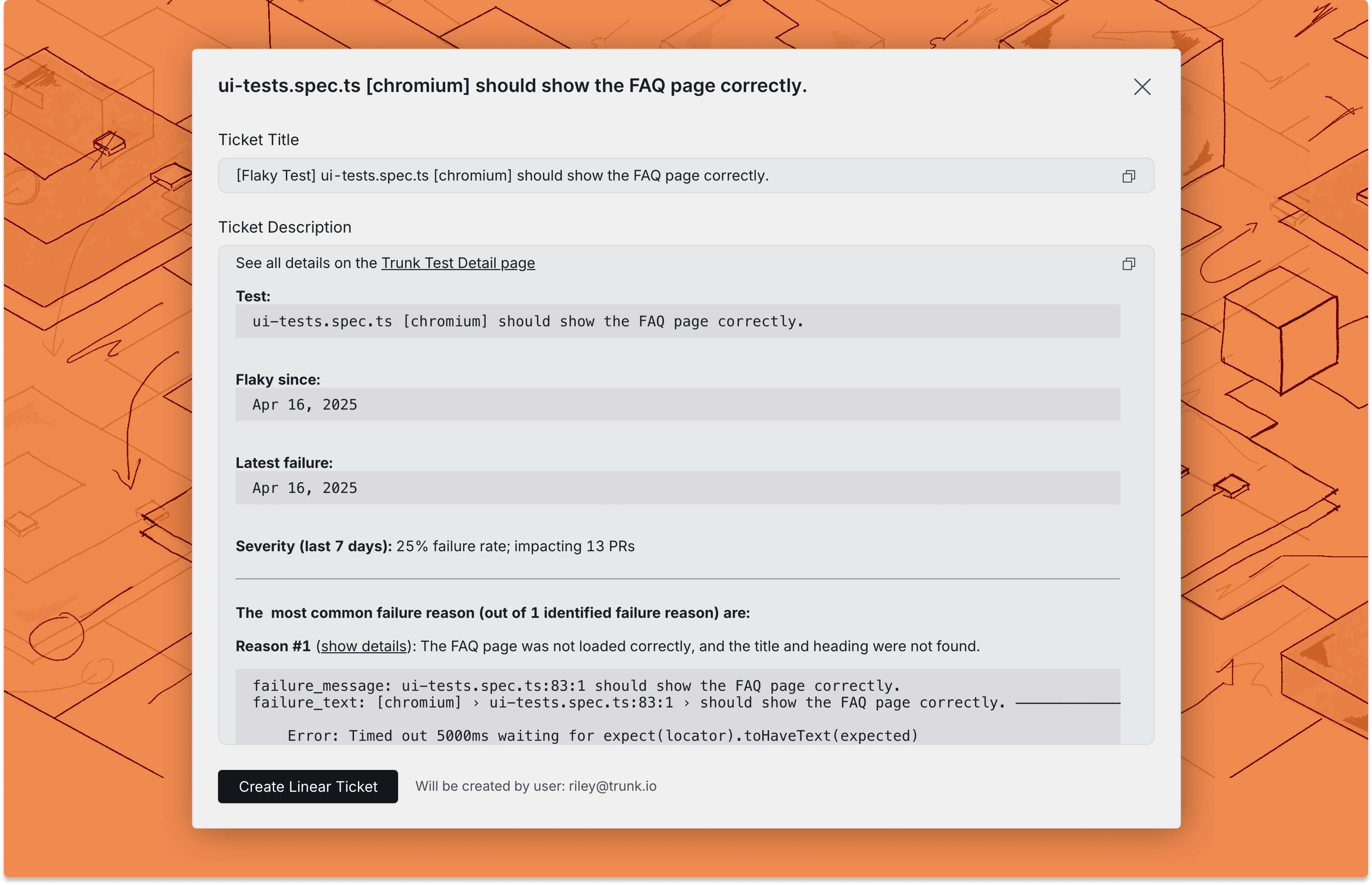
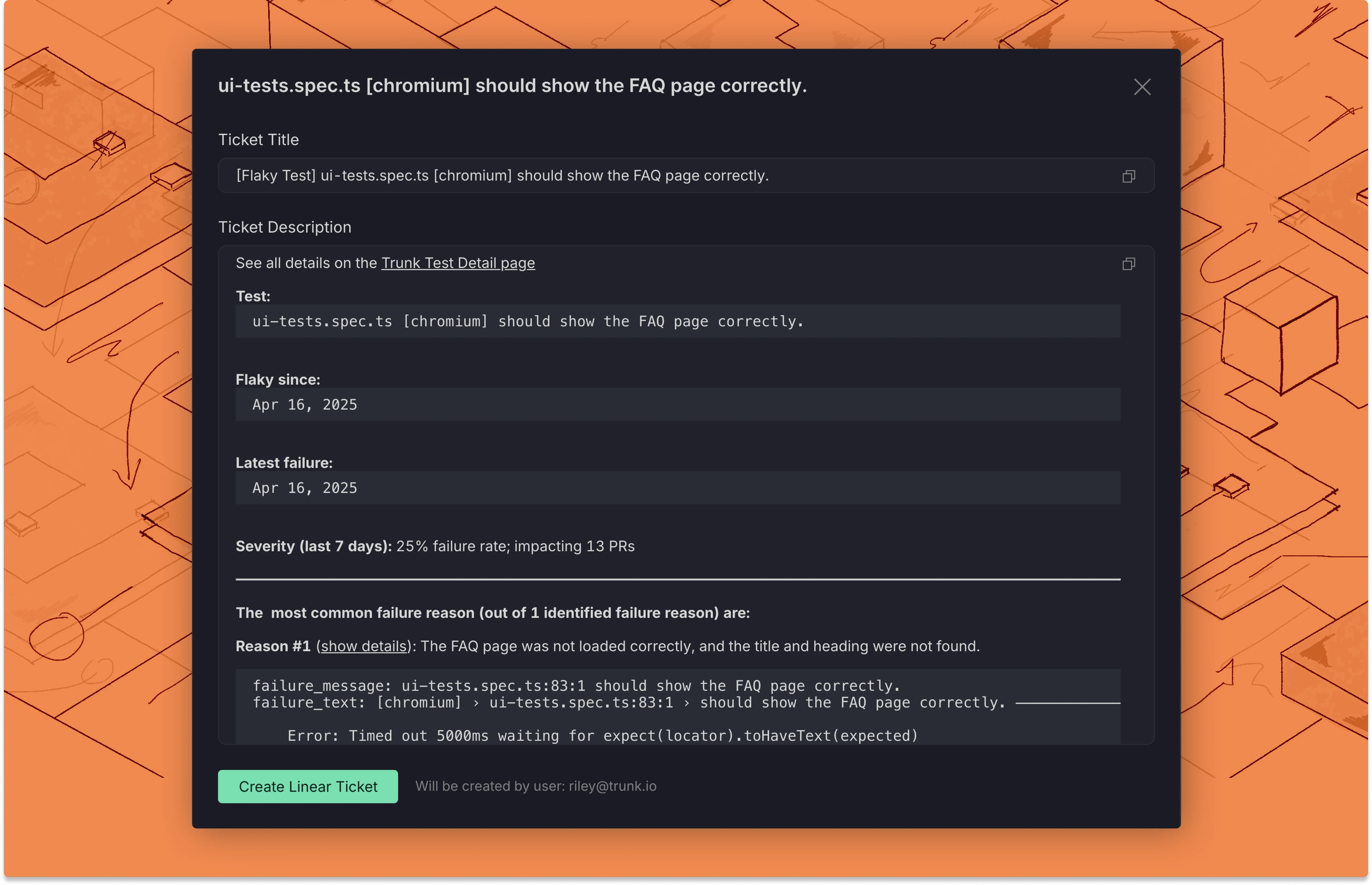
Before you create the ticket, you get a preview of the title and description.
* Use the Create ticket button in the top left corner of the [test case details](../../dashboard#test-case-details) page.
Before you create the ticket, you get a preview of the title and description.
 ### Create with Linear
If you are connected to Linear, you can click the **Create Linear Ticket** button at the end of the modal to automatically create a ticket with the configured team and any field defaults you have set.
Note: You can use [Flaky Tests webhooks](../../webhooks/linear-integration) to automate ticket creation, or if you need more control over how tickets are created in Linear. This integration is not required when using webhooks.
## Field defaults
After selecting a team, you can configure default values that pre-populate whenever a new Linear ticket is created from Flaky Tests:
| Field | Description |
| ------------ | -------------------------------------------------------------------------------------------------------------------- |
| **Priority** | Default issue priority (Urgent, High, Medium, Low, No priority) |
| **Labels** | One or more team-level or workspace-level labels to apply |
| **Estimate** | Default story point estimate (scale matches your team's estimation type: Fibonacci, T-shirt, linear, or exponential) |
| **Project** | Default Linear project, filtered to projects accessible by the selected team |
| **Assignee** | Default assignee, chosen from team members |
Changing the selected team clears and reloads all field options automatically.
Field defaults are saved per repository. When you open the **Create Ticket** modal, all configured defaults are pre-filled and can be overridden before submitting.
### Requiring fields at ticket creation
For each field, you can check **Require user to fill at creation** instead of setting a default value. When this option is on, the field appears in the **Create Ticket** modal as a required input. The **Create Linear Ticket** button stays disabled until the user fills every required field.
This is useful for fields like **Project** or **Assignee** where the right value depends on the specific test being triaged and should not be pre-set globally.
## Link existing tickets to tests
If you already have a Linear ticket for a test, you can link it directly from the Test Details page without creating a new one.
**From the UI:**
1. Open the test case details page.
2. Click **Link Ticket** in the top-left corner.
3. Enter the Linear ticket URL or ID and click **Submit**.
The ticket appears on the test details page and its metadata (title, status, assignee) syncs from Linear.
**Via API:**
You can also link tickets programmatically using the [Link Ticket to Test Case API](../../reference/api-reference#post-flaky-tests-link-ticket-to-test-case).
### Create with Linear
If you are connected to Linear, you can click the **Create Linear Ticket** button at the end of the modal to automatically create a ticket with the configured team and any field defaults you have set.
Note: You can use [Flaky Tests webhooks](../../webhooks/linear-integration) to automate ticket creation, or if you need more control over how tickets are created in Linear. This integration is not required when using webhooks.
## Field defaults
After selecting a team, you can configure default values that pre-populate whenever a new Linear ticket is created from Flaky Tests:
| Field | Description |
| ------------ | -------------------------------------------------------------------------------------------------------------------- |
| **Priority** | Default issue priority (Urgent, High, Medium, Low, No priority) |
| **Labels** | One or more team-level or workspace-level labels to apply |
| **Estimate** | Default story point estimate (scale matches your team's estimation type: Fibonacci, T-shirt, linear, or exponential) |
| **Project** | Default Linear project, filtered to projects accessible by the selected team |
| **Assignee** | Default assignee, chosen from team members |
Changing the selected team clears and reloads all field options automatically.
Field defaults are saved per repository. When you open the **Create Ticket** modal, all configured defaults are pre-filled and can be overridden before submitting.
### Requiring fields at ticket creation
For each field, you can check **Require user to fill at creation** instead of setting a default value. When this option is on, the field appears in the **Create Ticket** modal as a required input. The **Create Linear Ticket** button stays disabled until the user fills every required field.
This is useful for fields like **Project** or **Assignee** where the right value depends on the specific test being triaged and should not be pre-set globally.
## Link existing tickets to tests
If you already have a Linear ticket for a test, you can link it directly from the Test Details page without creating a new one.
**From the UI:**
1. Open the test case details page.
2. Click **Link Ticket** in the top-left corner.
3. Enter the Linear ticket URL or ID and click **Submit**.
The ticket appears on the test details page and its metadata (title, status, assignee) syncs from Linear.
**Via API:**
You can also link tickets programmatically using the [Link Ticket to Test Case API](../../reference/api-reference#post-flaky-tests-link-ticket-to-test-case).