> ## Documentation Index
> Fetch the complete documentation index at: https://docs.trunk.io/llms.txt
> Use this file to discover all available pages before exploring further.
# Claude Code (CLI)
> Add Trunk's MCP Server to Claude Code
## CLI setup
Run the following command to add the MCP server configuration. If you want to only enable it for yourself, use `--scope user` instead.
```bash theme={null}
claude mcp add --transport http trunk https://mcp.trunk.io/mcp --scope project
```
Once completed, reopen Claude Code.
## Alternative: Update MCP configuration
Add the following [configuration](https://docs.anthropic.com/en/docs/claude-code/mcp) to your project's `.mcp.json` file.
```json theme={null}
{
"mcpServers": {
"trunk": {
"url": "https://mcp.trunk.io/mcp",
"type": "http"
}
}
}
```
## Authentication with OAuth (default)
After the MCP server was added to Claude Code, users need to authorize to communicate with the server. Follow these steps to complete auth.
**Step 1: Start Claude Code CLI**
In your terminal, run `claude` .
**Step 2: Run the mcp command**
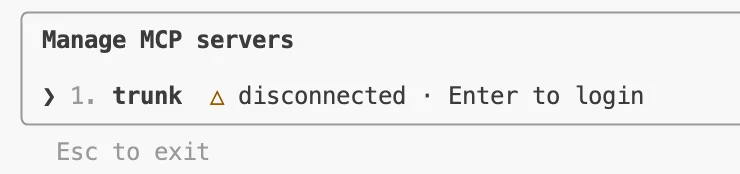
Claude Code should recognize that auth is required. Run `/mcp` to authenticate, select trunk, and hit Enter:
 **Step 3: Login & authorize**
A new webpage will be opened. Log in with your Trunk account and follow the instructions to authorize Claude Code to communicate with the MCP server.
**Step 4: Confirm**
Follow instructions to get back to Claude Code. A confirmation should be shown:
```
Authentication successful. Connected to trunk.
```
**With auth completed, Claude Code will be able to fetch the tools exposed by Trunk's MCP server.**
## Alternative: Authentication with API token
If you are in a CI or headless environment, or prefer not to use the OAuth browser flow, you can authenticate with your Trunk organization API token instead.
Find your token under **Settings** → **Organization** → **General**, in the **API** section of the Trunk dashboard, then add it to your `.mcp.json`:
```json theme={null}
{
"mcpServers": {
"trunk": {
"url": "https://mcp.trunk.io/mcp",
"type": "http",
"headers": {
"Authorization": "Bearer ${TRUNK_API_TOKEN}"
}
}
}
}
```
Set the `TRUNK_API_TOKEN` environment variable to your org API token. Claude Code interpolates environment variables in MCP configuration files automatically.
**Step 3: Login & authorize**
A new webpage will be opened. Log in with your Trunk account and follow the instructions to authorize Claude Code to communicate with the MCP server.
**Step 4: Confirm**
Follow instructions to get back to Claude Code. A confirmation should be shown:
```
Authentication successful. Connected to trunk.
```
**With auth completed, Claude Code will be able to fetch the tools exposed by Trunk's MCP server.**
## Alternative: Authentication with API token
If you are in a CI or headless environment, or prefer not to use the OAuth browser flow, you can authenticate with your Trunk organization API token instead.
Find your token under **Settings** → **Organization** → **General**, in the **API** section of the Trunk dashboard, then add it to your `.mcp.json`:
```json theme={null}
{
"mcpServers": {
"trunk": {
"url": "https://mcp.trunk.io/mcp",
"type": "http",
"headers": {
"Authorization": "Bearer ${TRUNK_API_TOKEN}"
}
}
}
}
```
Set the `TRUNK_API_TOKEN` environment variable to your org API token. Claude Code interpolates environment variables in MCP configuration files automatically.