

app.trunk.io/[your organization slug]/settings/account/notifications.
Why Trunk needs your GitHub account
Trunk identifies your account by the email address you signed in with. It has no way to know which GitHub username belongs to that email, so you tell it once by connecting your GitHub account. From then on, Trunk can match pull requests to you. Until you connect, Trunk can’t tell which pull requests are yours. You’ll still receive Merge Queue updates, but the personal notifications that depend on knowing your GitHub identity won’t reach you. If a teammate has told you your notifications look wrong, this is usually why.Connect your GitHub account
- In the Trunk app, navigate to Settings → Account → Notifications. Use the Account group in the sidebar, not Organization.
- In the GitHub section at the top of the page, click Connect. If the section already reads Disconnect GitHub Account, your account is connected and there’s nothing to do.
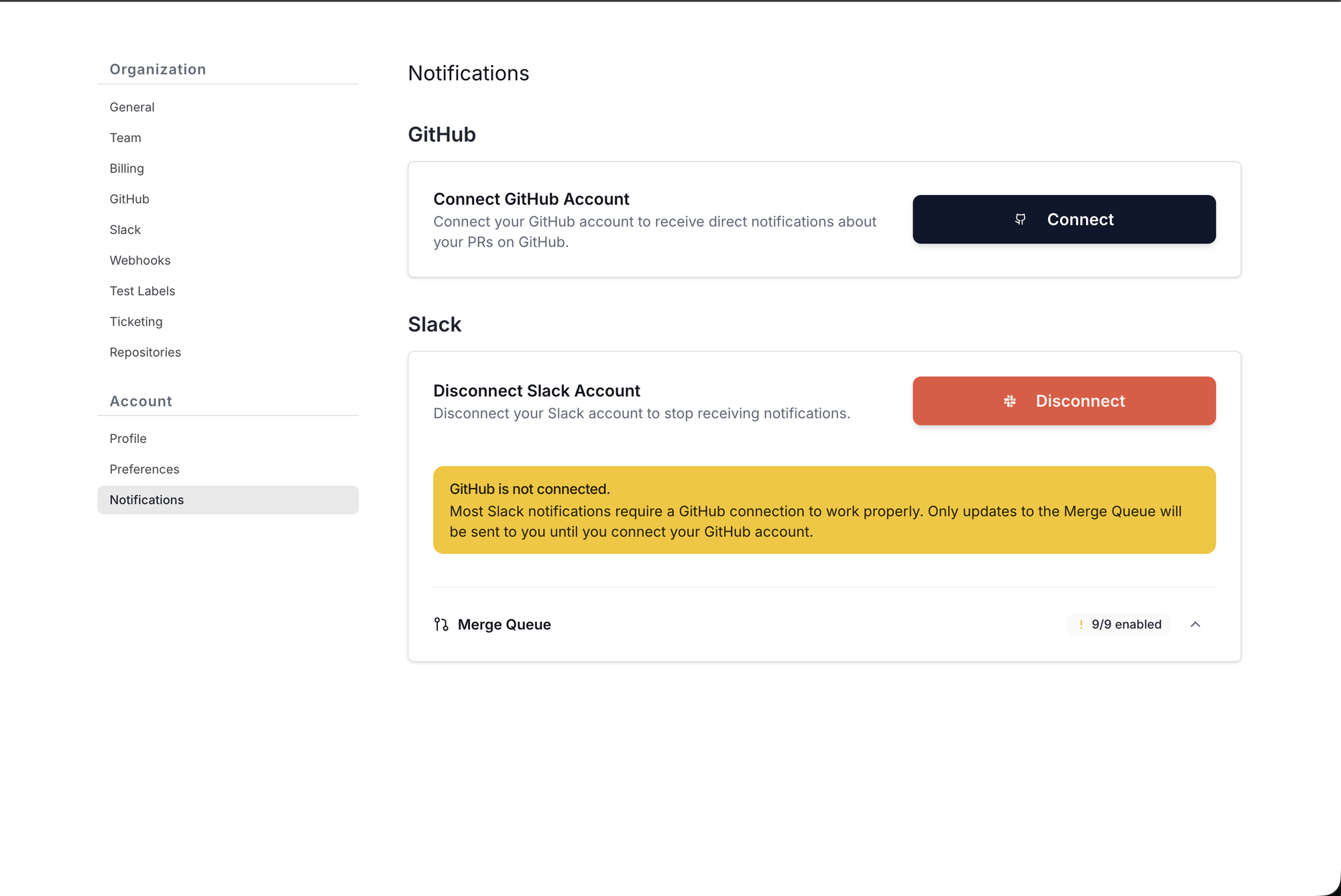
The GitHub section before connecting. The warning inside the Slack card below it appears when Slack is connected but GitHub isn't.
- Trunk shows a modal explaining what it will ask GitHub for: read-only access to your profile information, and no other permissions. It also previews the authorization screen you’re about to see. Click Connect to continue to GitHub.
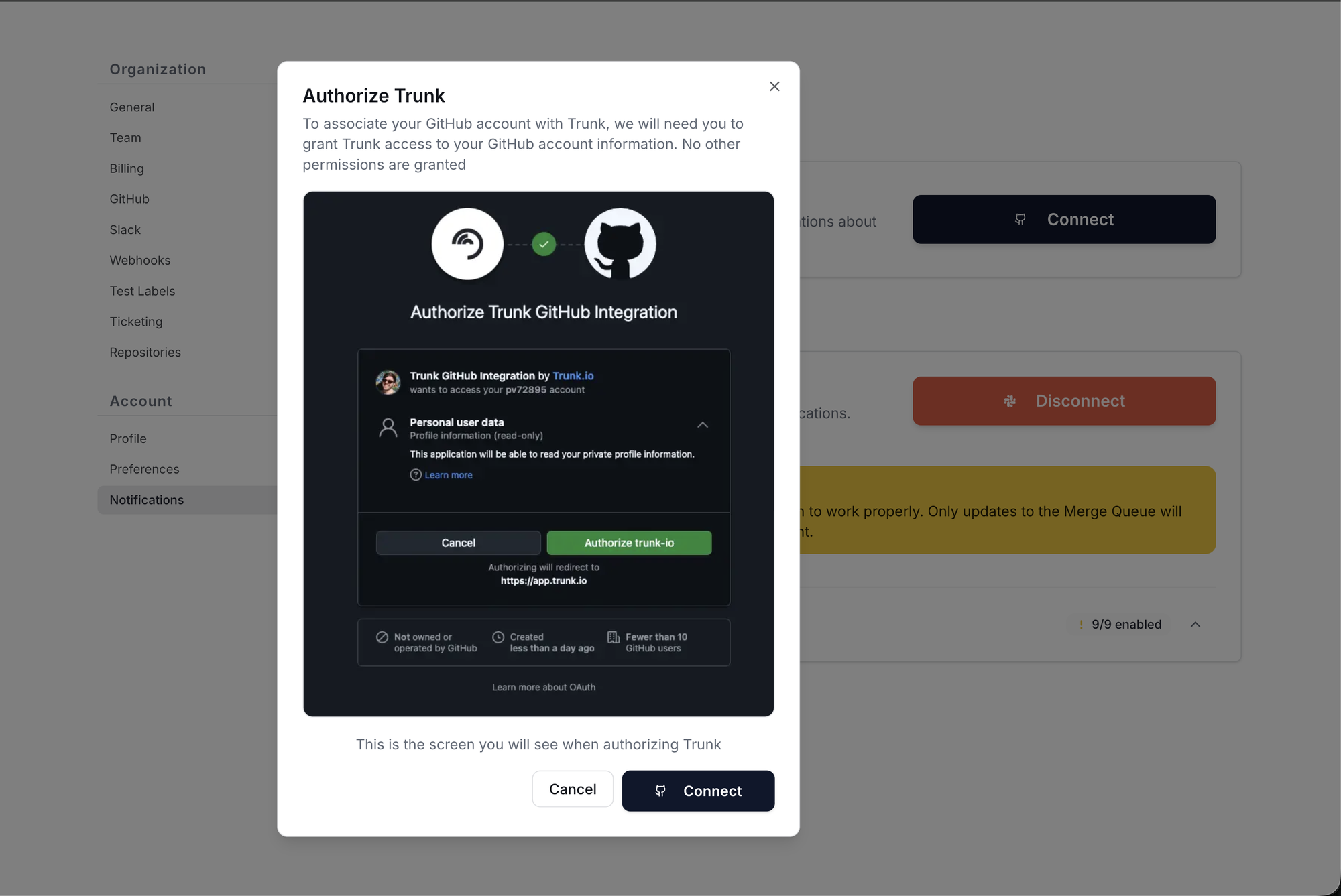
Trunk's confirmation modal. The dark panel inside it is a preview of GitHub's authorization screen, not the live page — you'll click Authorize on github.com after this.
- On GitHub’s authorization screen, click Authorize trunk-io. GitHub redirects you back to Trunk, which confirms the connection and names the GitHub user it linked. Check that name — it’s your only chance to catch a connection made from the wrong GitHub account.
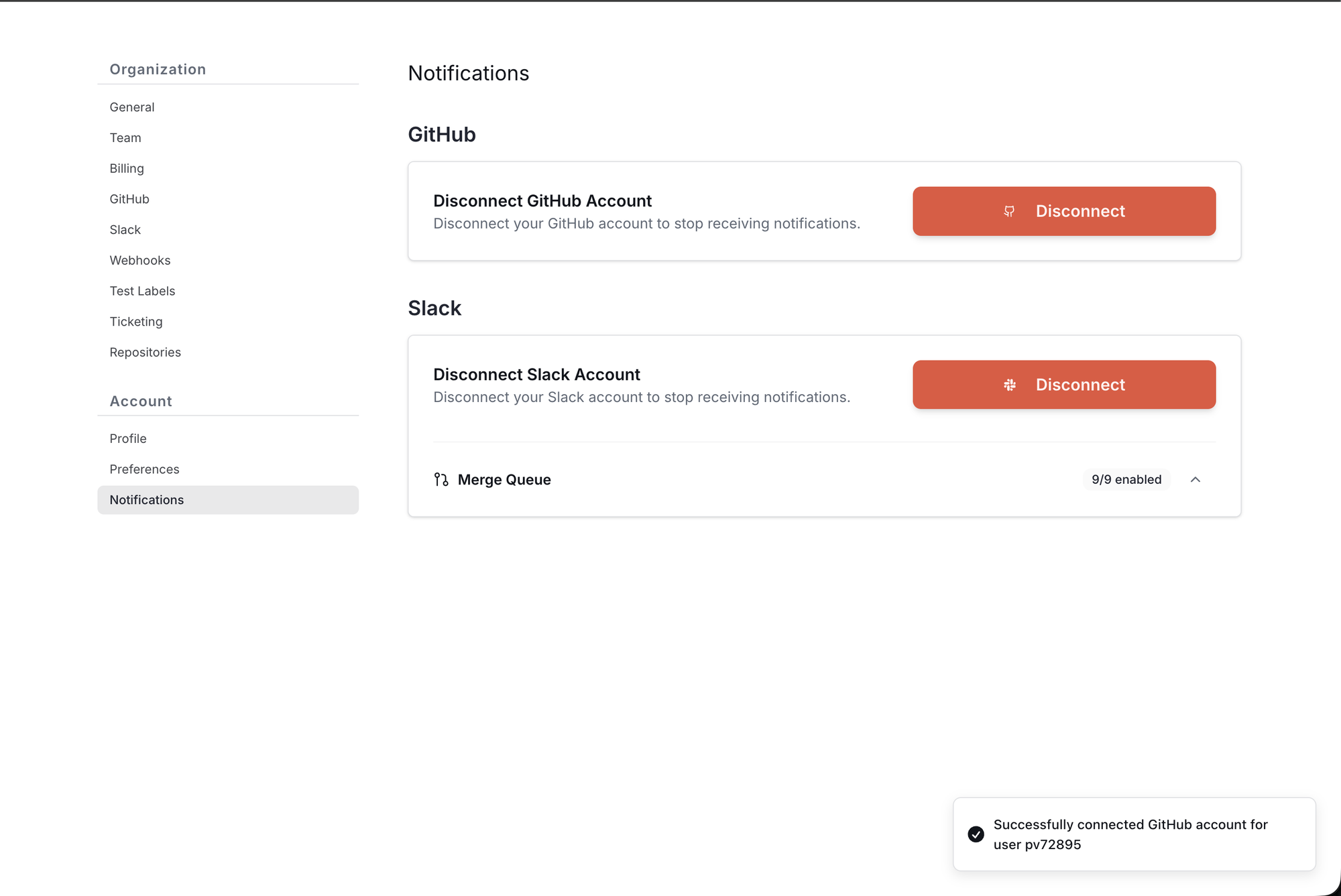
After connecting. The confirmation names the linked GitHub user, and the warning in the Slack card is gone.
What Trunk can access
Disconnecting
To disconnect, return to Settings → Account → Notifications and click Disconnect in the GitHub section. Disconnecting stops every notification that depends on knowing your GitHub identity. You’ll continue to receive Merge Queue updates. You can reconnect at any time by repeating the steps above.Connect your Slack account
Personal Slack notifications send you a direct message as your pull requests are queued, tested, merged, or fail. The Slack section walks through two steps, in order:- Connect your Slack workspace. This is a one-time, workspace-wide install performed by a Slack admin. If your workspace is already connected, skip to step 2. If it isn’t, and you’re not a Slack admin yourself, send this page to whoever is — the Go to Slack settings button leads to the organization-level setup they’ll need.
- Complete setup in Slack. Click Open in Slack to open the Trunk Slack app’s Home tab, where you link your personal account and choose your notification topics. This button stays disabled until step 1 is done.
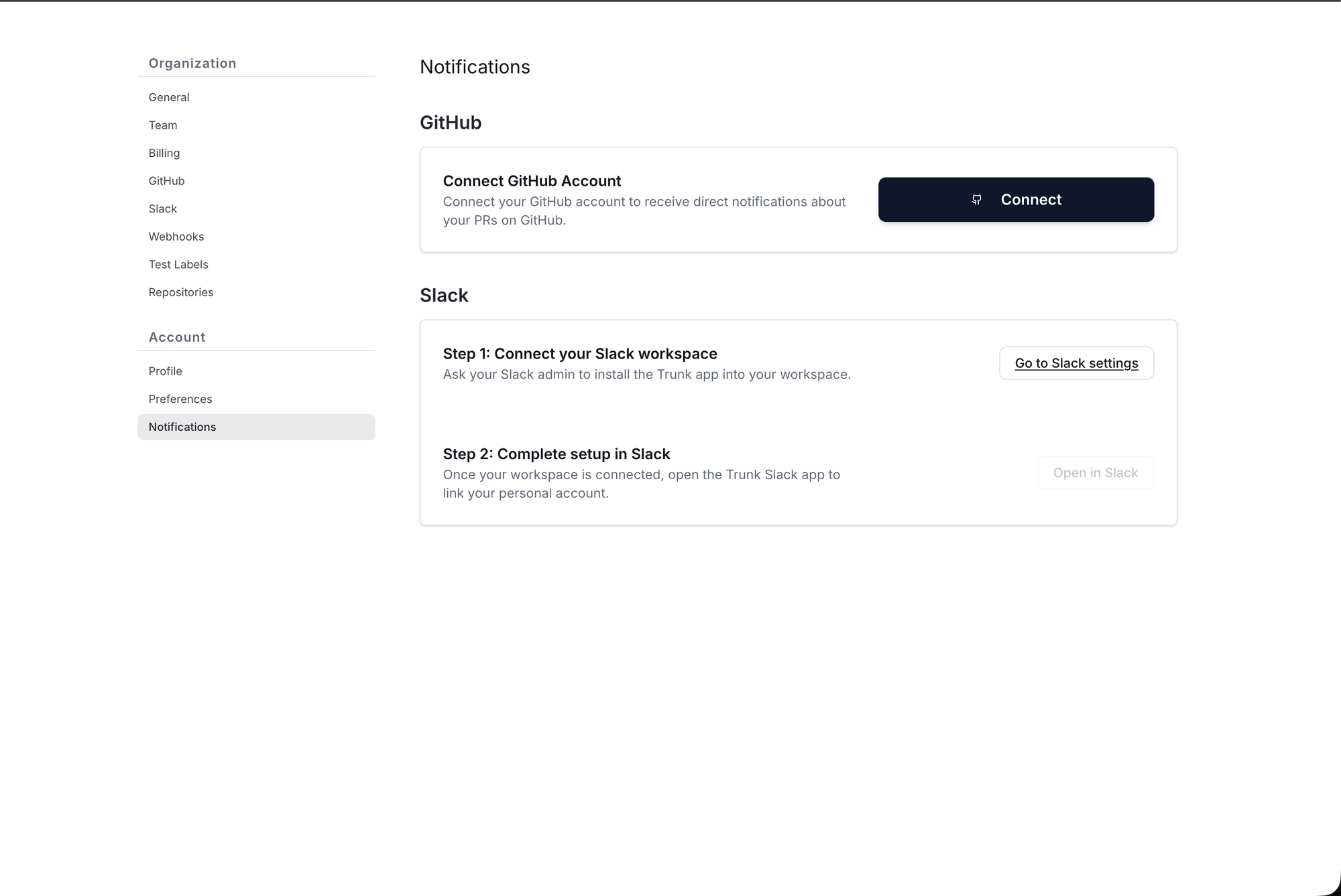
The Slack setup steps before a workspace is connected. Open in Slack is disabled until step 1 is complete.
Frequently asked questions
Trunk already merges my pull requests. Why doesn't it know my GitHub username?
Trunk already merges my pull requests. Why doesn't it know my GitHub username?
How is this different from the Trunk GitHub App?
How is this different from the Trunk GitHub App?
Does connecting my GitHub account give Trunk access to my code?
Does connecting my GitHub account give Trunk access to my code?
The confirmation named the wrong GitHub user.
The confirmation named the wrong GitHub user.
Will I get notifications about pull requests I already have open?
Will I get notifications about pull requests I already have open?
Why are my Slack notifications limited to Merge Queue updates?
Why are my Slack notifications limited to Merge Queue updates?