> ## Documentation Index
> Fetch the complete documentation index at: https://docs.trunk.io/llms.txt
> Use this file to discover all available pages before exploring further.
# Personal Notifications
> Connect your GitHub and Slack accounts to Trunk so it can notify you about your own pull requests.
Personal notifications keep you updated on your own pull requests as they move through Trunk. You configure them under **Settings** → **Account** → **Notifications**, at `app.trunk.io/`**\[your organization slug]**`/settings/account/notifications`.
## Why Trunk needs your GitHub account
Trunk identifies your account by the email address you signed in with. It has no way to know which GitHub username belongs to that email, so you tell it once by connecting your GitHub account. From then on, Trunk can match pull requests to you.
Until you connect, Trunk can't tell which pull requests are yours. You'll still receive Merge Queue updates, but the personal notifications that depend on knowing your GitHub identity won't reach you. If a teammate has told you your notifications look wrong, this is usually why.
This is a per-user setting that affects only you. It's unrelated to the organization-level [Trunk GitHub App](./github-app-permissions), which an admin installs once to give Trunk access to your repositories. You don't need to install anything.
## Connect your GitHub account
1. In the Trunk app, navigate to **Settings** → **Account** → **Notifications**. Use the **Account** group in the sidebar, not **Organization**.
2. In the **GitHub** section at the top of the page, click **Connect**. If the section already reads **Disconnect GitHub Account**, your account is connected and there's nothing to do.
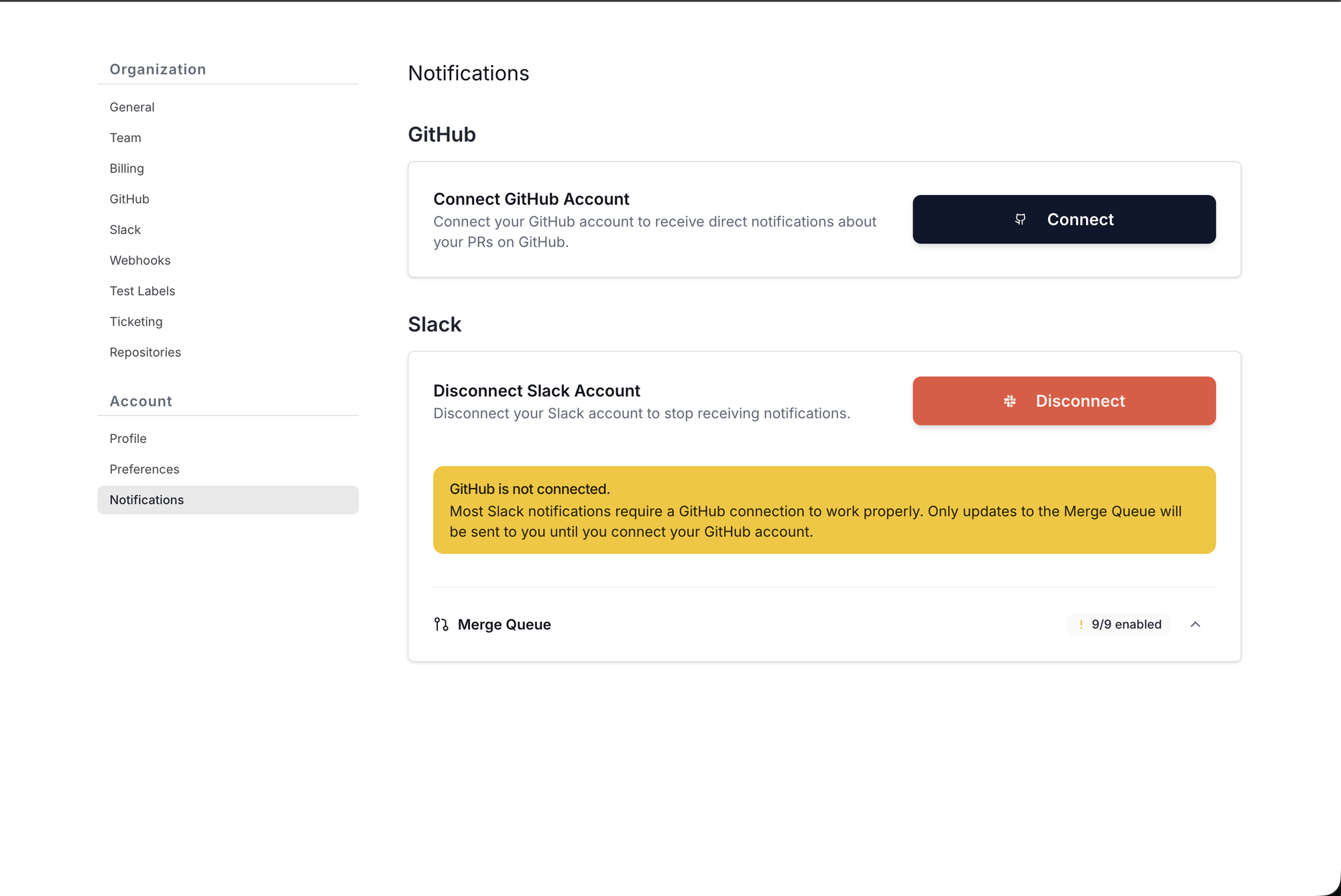 3. Trunk shows a modal explaining what it will ask GitHub for: read-only access to your profile information, and no other permissions. It also previews the authorization screen you're about to see. Click **Connect** to continue to GitHub.
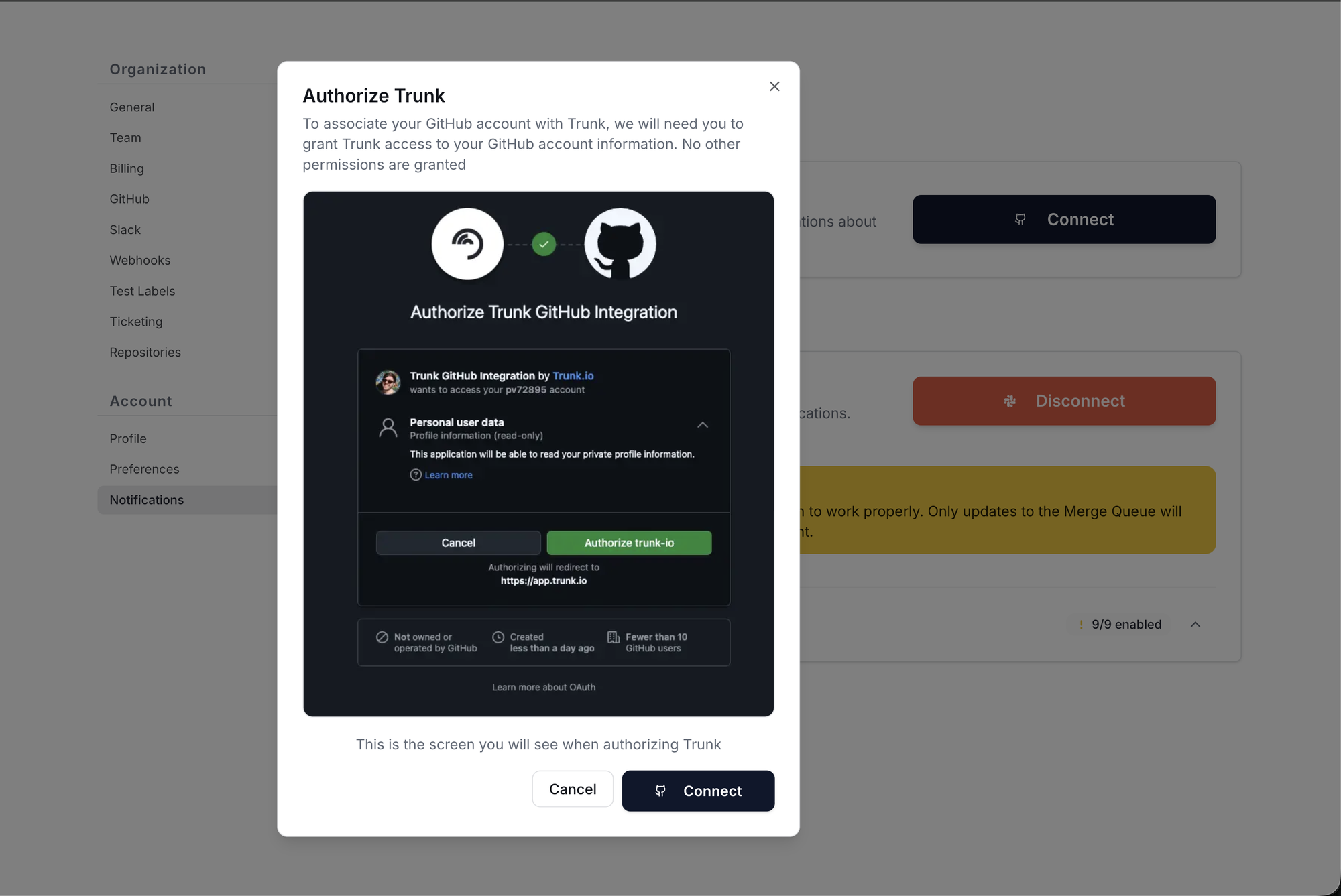 4. On GitHub's authorization screen, click **Authorize trunk-io**. GitHub redirects you back to Trunk, which confirms the connection and names the GitHub user it linked. Check that name — it's your only chance to catch a connection made from the wrong GitHub account.
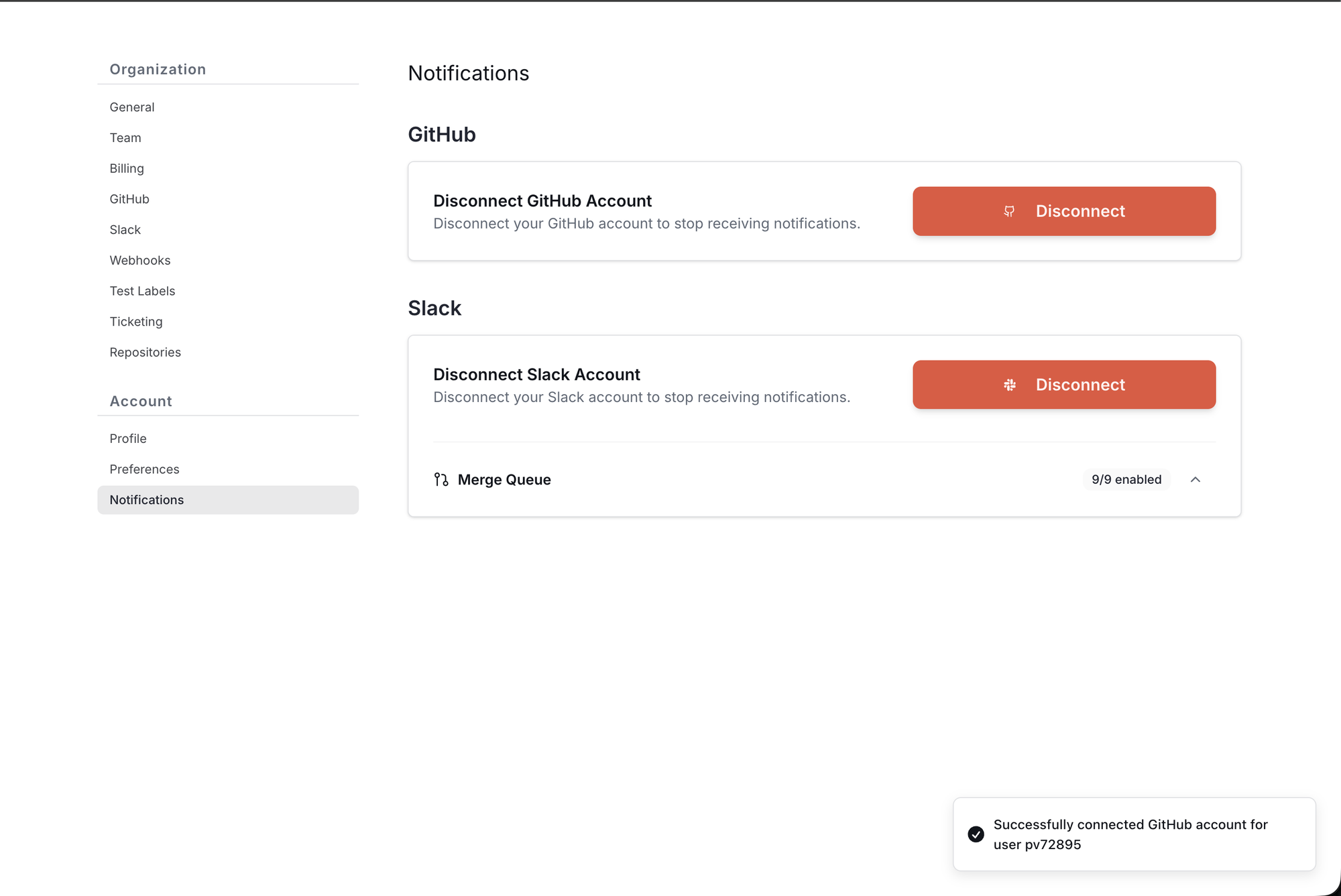 The connection applies to pull requests you already have open, not just new ones. You don't need to reopen or re-queue anything.
### What Trunk can access
This connection grants read-only access to your personal GitHub profile information and nothing else. It does not grant access to any repository, and it can't act on your behalf. Repository access comes from the separate [Trunk GitHub App](./github-app-permissions) that an organization admin installs.
### Disconnecting
To disconnect, return to **Settings** → **Account** → **Notifications** and click **Disconnect** in the **GitHub** section.
Disconnecting stops every notification that depends on knowing your GitHub identity. You'll continue to receive Merge Queue updates. You can reconnect at any time by repeating the steps above.
## Connect your Slack account
Personal Slack notifications send you a direct message as your pull requests are queued, tested, merged, or fail.
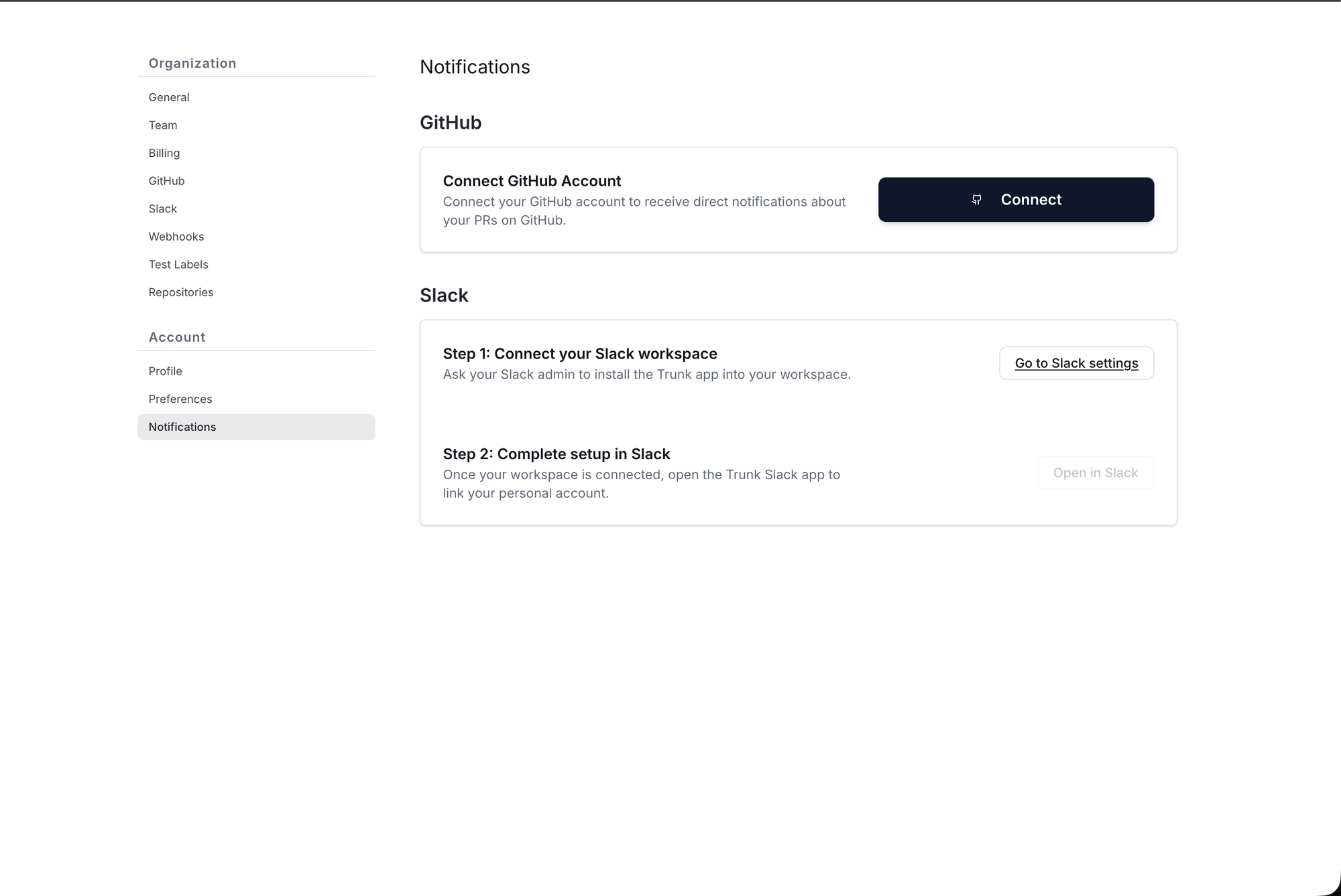
The **Slack** section walks through two steps, in order:
1. **Connect your Slack workspace.** This is a one-time, workspace-wide install performed by a Slack admin. If your workspace is already connected, skip to step 2. If it isn't, and you're not a Slack admin yourself, send this page to whoever is — the **Go to Slack settings** button leads to the organization-level setup they'll need.
2. **Complete setup in Slack.** Click **Open in Slack** to open the Trunk Slack app's Home tab, where you link your personal account and choose your notification topics. This button stays disabled until step 1 is done.
The connection applies to pull requests you already have open, not just new ones. You don't need to reopen or re-queue anything.
### What Trunk can access
This connection grants read-only access to your personal GitHub profile information and nothing else. It does not grant access to any repository, and it can't act on your behalf. Repository access comes from the separate [Trunk GitHub App](./github-app-permissions) that an organization admin installs.
### Disconnecting
To disconnect, return to **Settings** → **Account** → **Notifications** and click **Disconnect** in the **GitHub** section.
Disconnecting stops every notification that depends on knowing your GitHub identity. You'll continue to receive Merge Queue updates. You can reconnect at any time by repeating the steps above.
## Connect your Slack account
Personal Slack notifications send you a direct message as your pull requests are queued, tested, merged, or fail.
The **Slack** section walks through two steps, in order:
1. **Connect your Slack workspace.** This is a one-time, workspace-wide install performed by a Slack admin. If your workspace is already connected, skip to step 2. If it isn't, and you're not a Slack admin yourself, send this page to whoever is — the **Go to Slack settings** button leads to the organization-level setup they'll need.
2. **Complete setup in Slack.** Click **Open in Slack** to open the Trunk Slack app's Home tab, where you link your personal account and choose your notification topics. This button stays disabled until step 1 is done.
 For the full walkthrough, including the available notification topics and the Slack Home dashboard, see [Integration for Slack](../merge-queue/integration-for-slack#personal-slack-notifications).
The Slack app's Home tab also offers to connect your GitHub account. It's the same connection described on this page — connecting in either place is enough, and you don't need to do both.
## Frequently asked questions
Because the two identities are separate. Your Trunk account is tied to the email address you signed in with, and Trunk has no way to determine which GitHub username belongs to that email. It can see your GitHub username on a pull request, but it can't know that username is *you* until you link the two.
Connecting your GitHub account is what makes that link. It's a one-time step.
They do different jobs and are set up in different places.
The [Trunk GitHub App](./github-app-permissions) is installed once per organization by an admin, under **Settings** → **Organization** → **GitHub**. It grants Trunk access to your repositories so it can manage merge queue branches, read check results, and post pull request comments. If Trunk is already running your merge queue, this is installed and you don't need to touch it.
The connection on this page is yours alone, under **Settings** → **Account** → **Notifications**. It only tells Trunk who you are. It grants no repository access.
No. This connection grants read-only access to your GitHub profile information only. Trunk's access to repository contents comes from the [Trunk GitHub App](./github-app-permissions), installed separately at the organization level, and is unchanged by whether you personally connect.
This happens when your browser is signed into a different GitHub account than the one you use for work. Click **Disconnect** in the **GitHub** section, sign into GitHub as the correct user, and connect again.
Yes. Once your GitHub account is connected, Trunk matches your existing open pull requests to you along with any new ones. There's nothing to reopen or re-queue.
Because your GitHub account isn't connected. Most personal notifications are about your own pull requests, and Trunk can't determine which pull requests are yours until you link your GitHub identity. Follow the steps in [Connect your GitHub account](#connect-your-github-account) to enable the rest.
For the full walkthrough, including the available notification topics and the Slack Home dashboard, see [Integration for Slack](../merge-queue/integration-for-slack#personal-slack-notifications).
The Slack app's Home tab also offers to connect your GitHub account. It's the same connection described on this page — connecting in either place is enough, and you don't need to do both.
## Frequently asked questions
Because the two identities are separate. Your Trunk account is tied to the email address you signed in with, and Trunk has no way to determine which GitHub username belongs to that email. It can see your GitHub username on a pull request, but it can't know that username is *you* until you link the two.
Connecting your GitHub account is what makes that link. It's a one-time step.
They do different jobs and are set up in different places.
The [Trunk GitHub App](./github-app-permissions) is installed once per organization by an admin, under **Settings** → **Organization** → **GitHub**. It grants Trunk access to your repositories so it can manage merge queue branches, read check results, and post pull request comments. If Trunk is already running your merge queue, this is installed and you don't need to touch it.
The connection on this page is yours alone, under **Settings** → **Account** → **Notifications**. It only tells Trunk who you are. It grants no repository access.
No. This connection grants read-only access to your GitHub profile information only. Trunk's access to repository contents comes from the [Trunk GitHub App](./github-app-permissions), installed separately at the organization level, and is unchanged by whether you personally connect.
This happens when your browser is signed into a different GitHub account than the one you use for work. Click **Disconnect** in the **GitHub** section, sign into GitHub as the correct user, and connect again.
Yes. Once your GitHub account is connected, Trunk matches your existing open pull requests to you along with any new ones. There's nothing to reopen or re-queue.
Because your GitHub account isn't connected. Most personal notifications are about your own pull requests, and Trunk can't determine which pull requests are yours until you link your GitHub identity. Follow the steps in [Connect your GitHub account](#connect-your-github-account) to enable the rest.