

What changes
Both views, while you migrate
Flaky Tests opens on your test collections. To reach the repository view, click Legacy view on the collections list; to come back, click Test collections on the repository overview. Trunk remembers whichever you chose and opens there next time.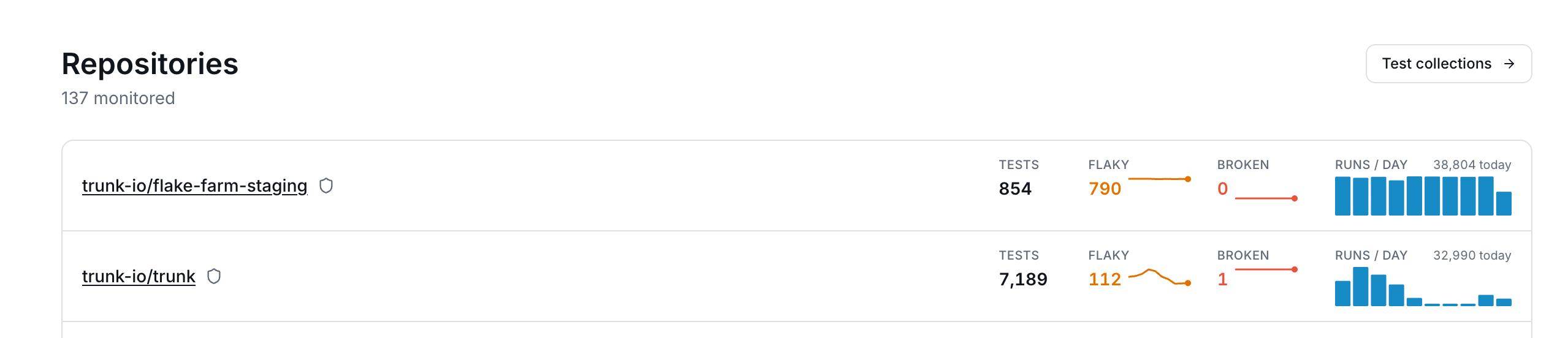
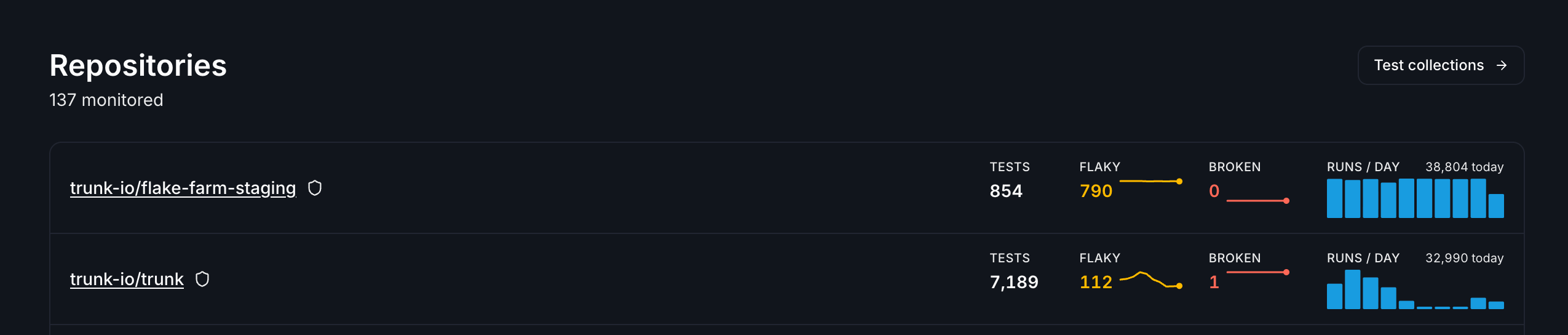
From the repository view, Test collections crosses over.
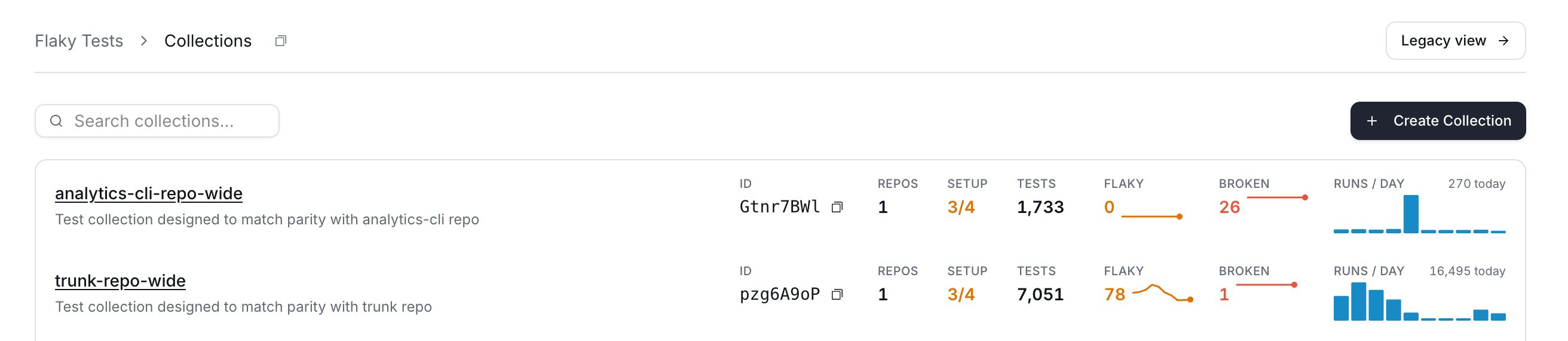
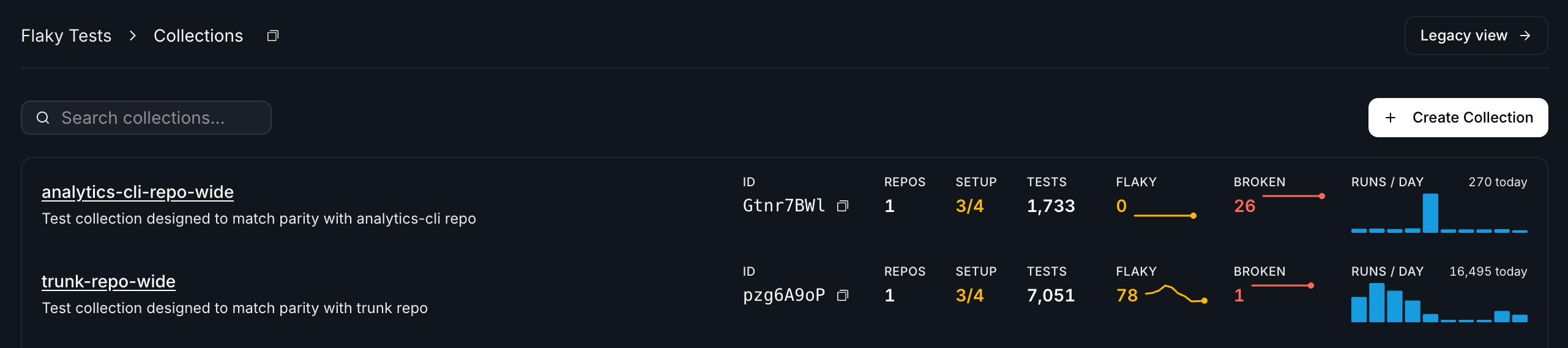
From the collections view, Legacy view crosses back.
What carries over, and what doesn’t
Configuration is per-collection. Nothing transfers on its own, but two things can be brought across deliberately while you are migrating.
Starting fresh is often what you want. You may wish to create different monitors for each collection, such as more sensitive flakiness detection for unit tests than for end-to-end tests.
Bring your repository monitors across
While your organization has both views, the collection’s Monitors tab offers Migrate from a repository. Pick a repository and every one of its monitors is sorted into three groups:- Not in this collection — selected by default, with the configuration the migrated monitor will have.
- Settings differ — the same monitor name on both sides with different settings. Not selectable; edit the collection’s monitor instead, so you don’t end up with two monitors sharing a name.
- Already in this collection — same name, same settings.
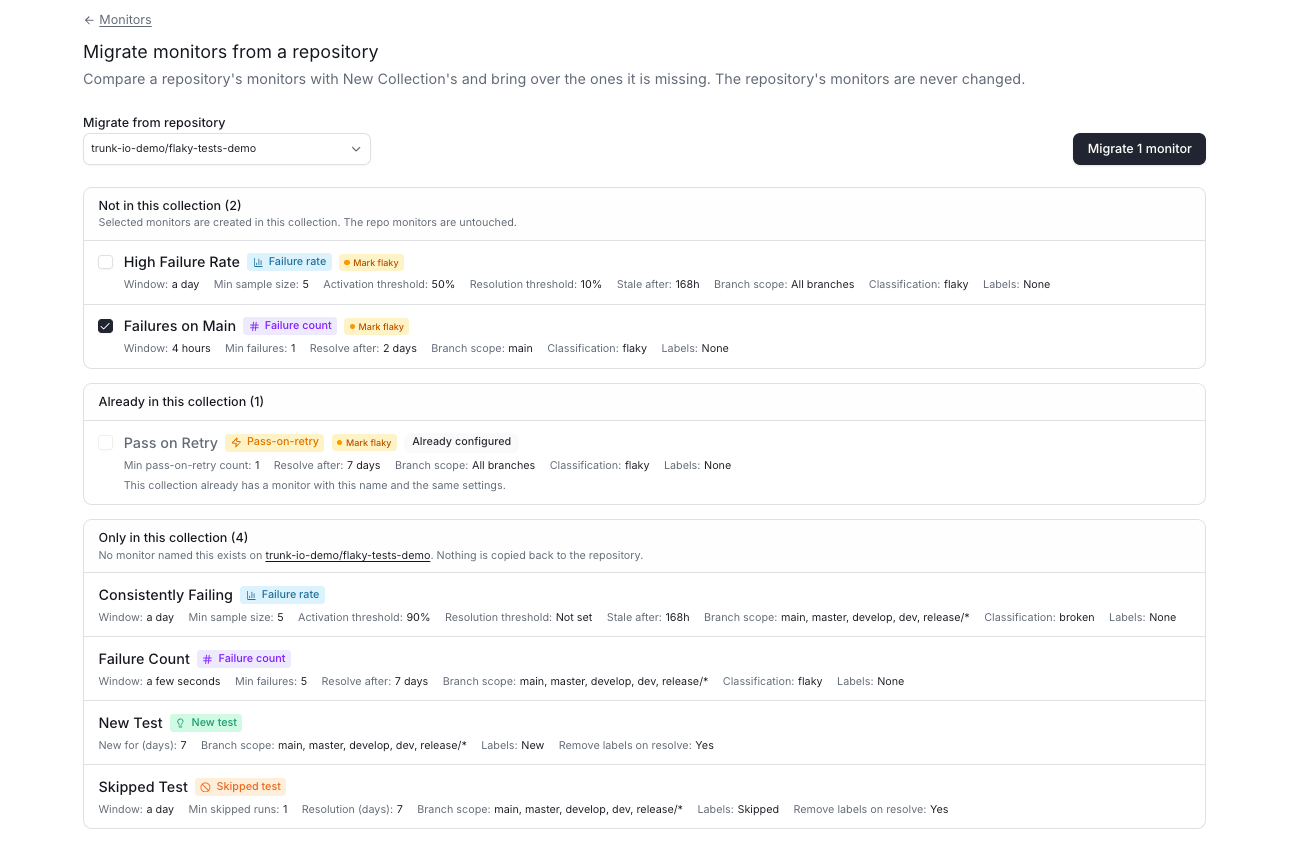
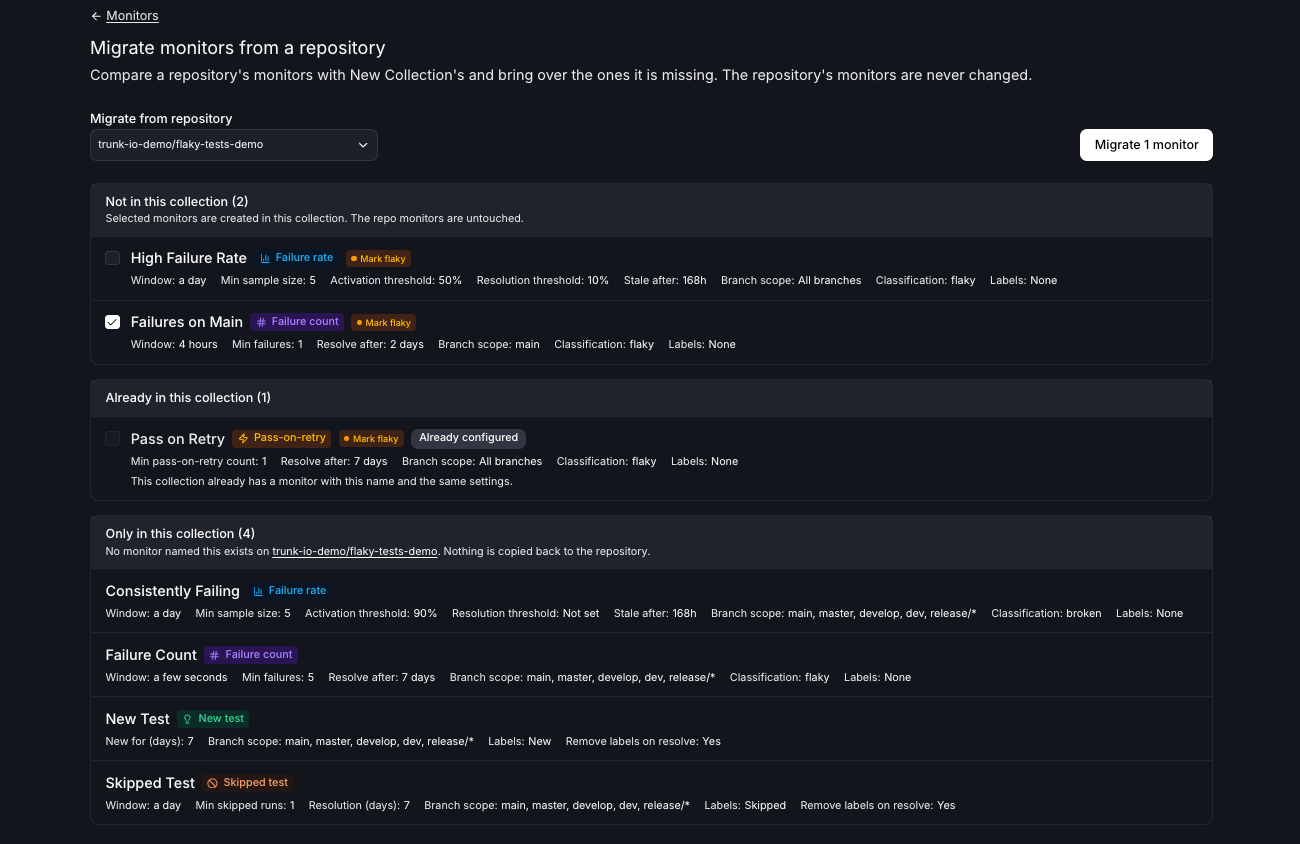
Every monitor on the repository, sorted by whether the collection already has it.
Bring a ticketing connection across
An organization ticketing integration can be copied from a repository that already has one, rather than re-entering an API token and re-picking a project. In the add-connection picker on Settings → Organization → Ticketing, choose Copy from a repo. The copy is named<Provider> (<repo>), because a collection picks a connection by name. Ticket automation does not copy — repository automation stays on and the collection’s stays off, so you can time the cutover yourself.
Migrate a CI job
1
Create a collection
Collections usually map to a team, a service, or a test suite. Group tests you want to configure and review together.See Create a collection.
2
Add the collection ID to one CI job
Add
--test-collection-id <COLLECTION_ID> to the job’s existing upload step, alongside the --org-url-slug it already passes. Start with one job rather than all of them.3
Confirm the results arrived
Open the collection’s Uploads tab. An upload appears as soon as Trunk accepts it, and fills in once the results are processed — so a bundle that contained no test results visibly stops at the first stage. The collection’s Tests tab unlocks once test cases have been ingested.
4
Review the collection's monitors
Open the collection’s Monitors tab and check the seeded defaults against what you run on the repository today. Either adjust them here, or use Migrate from a repository to bring the repository’s monitors across.
5
Turn on quarantining, then re-apply your overrides
While you are migrating, a new collection starts with quarantining off, because the repository’s settings are still governing your uploads. Enabling it replaces the repository’s quarantining for every upload routed to that collection, and your repository’s Always Quarantine and Never Quarantine overrides do not follow.Overrides can only be set once quarantining is enabled on the collection, so re-apply the ones that matter as soon as you turn it on.
6
Repeat, job by job
Move the rest of your CI jobs when you’re ready. Uploads without a collection ID keep going to the repository view, so a partly-migrated organization is a normal state to sit in.
Links in CI output
Once a job passes a collection ID, the links the CLI prints at the end of a run point at the collection. To keep the repository links while your team is still moving over, pass--hide-test-collection-links or set TRUNK_HIDE_TEST_COLLECTION_LINKS.
Running both views at once
While a repository and a collection both have monitors covering the same tests, they detect independently. That’s the point — it’s how you compare the two before committing — but it means:- A test can be flagged in both views, at different times, according to each one’s thresholds.
- If you use webhooks, one detection can produce two events — see below.
Webhooks while you migrate
Collection webhook events are off by default while you are migrating, and you switch them on from your organization’s webhooks settings once your consumers are ready. The control appears only while you have both views, since that is the only time it changes anything — once you have fully migrated, collection events are simply sent. It is one switch for every collection event, not one per event type. What you are asserting by turning it on is that your consumer handles collection payloads at all:- A collection event carries a
test_collectionobject. Repository events don’t, and that is the only supported way to tell the two apart. - You cannot deduplicate on
test_case.id. Collection and repository events don’t share a test-case ID space, so the same underlying test arrives under two unrelated IDs.repository.idis the only handle common to both. repositoryis omitted rather than guessed when an upload carries no repository.
AI agents and the MCP server
The Trunk MCP server reads the same places the Trunk app shows you:- While you are migrating,
search-testandinvestigate-ci-failureread both your repositories and your collections. A test can appear once in each, under two different IDs. - Once you have fully migrated, they read only your collections, and
fix-flaky-testis not available yet, because it works only with repository test IDs.
list-test-collections lists the collections a repository uploads to, and search-test can search just one of them.
Dashboards start fresh
Collections don’t backfill. A collection’s metrics begin at its first upload, so a correctly configured collection can still look empty for a day, and comparisons against a repository’s history aren’t meaningful until the collection has accumulated its own. Your repository history stays where it is and isn’t affected by migrating.Frequently asked questions
Why is my collection dashboard empty?
Why is my collection dashboard empty?
Collections don’t backfill history — metrics start at the collection’s first upload. If uploads are arriving and the dashboard is still empty, check the Uploads tab to confirm the results were processed and not just accepted.
Why aren't tests being quarantined?
Why aren't tests being quarantined?
Check Settings → Quarantining on the collection. While you are migrating, a collection starts with quarantining off, and auto-quarantine is off even once you turn quarantining on — so until you turn it on too, only tests you have set an Always Quarantine override on are quarantined. Auto-quarantine covers tests a monitor has flagged flaky; a broken test is never a candidate.
Can a collection contain tests from several repositories?
Can a collection contain tests from several repositories?
Yes. Collections and repositories are many-to-many. A repository is part of a test’s identity, but that test can be uploaded separately to multiple collections.