

Guides
If you’re setting up Trunk Flaky Tests for the first time, you can follow the guides for your CI provider and test framework.Guides by Test Frameworks
Guides by CI Provider
https://trunk.io/releases/analytics-cli/prod, as shown in Manual Download.
Manual Download
Releases are served fromhttps://trunk.io/releases/analytics-cli/prod. channel.json there names the latest version ({"latest": "x.y.z"}), and each version’s files live under <version>/. We provide executables for Linux and OS X. It’s a single file inside a tar and upon downloading the tar you will find a single binary - trunk-analytics-cli to use. To pin a version, set VERSION to it instead of reading channel.json.
Releases are also published on GitHub, but GitHub rate-limits downloads, so it is not a reliable source for CI. Download from
trunk.io instead.Organization Slug and Token
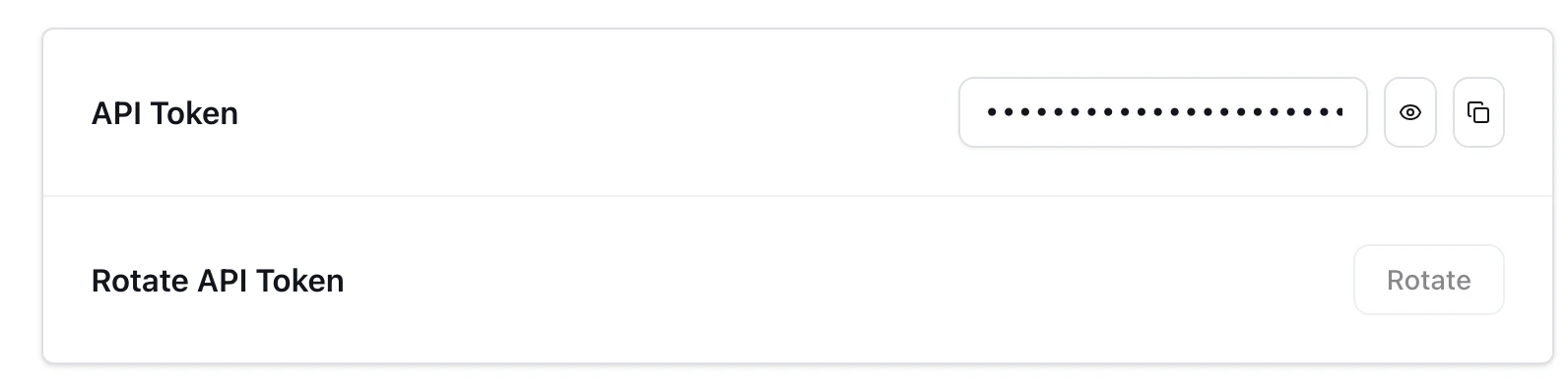
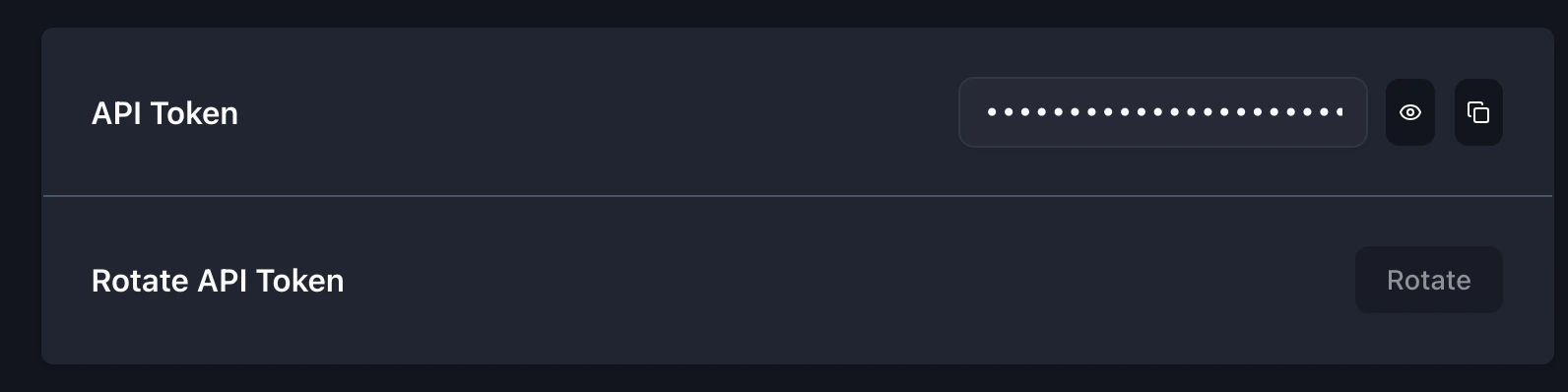
The CLI requires your Trunk organization slug, token, and test collection ID, passed through--org-url-slug, --token, and --test-collection-id, to upload results to the correct organization and collection. They can alternatively be set via environment variables, TRUNK_ORG_URL_SLUG, TRUNK_API_TOKEN, and TRUNK_TEST_COLLECTION_ID, respectively.
You can find your organization slug and token by navigating to Settings → Organization → General. The collection ID is on the collection’s page; see Test Collections.
Your organization slug is the tail of your dashboard URL (
app.trunk.io/<org-slug>). It defaults to your organization name with spaces replaced by hyphens. To change it, contact help@trunk.io.- Slug
- Token
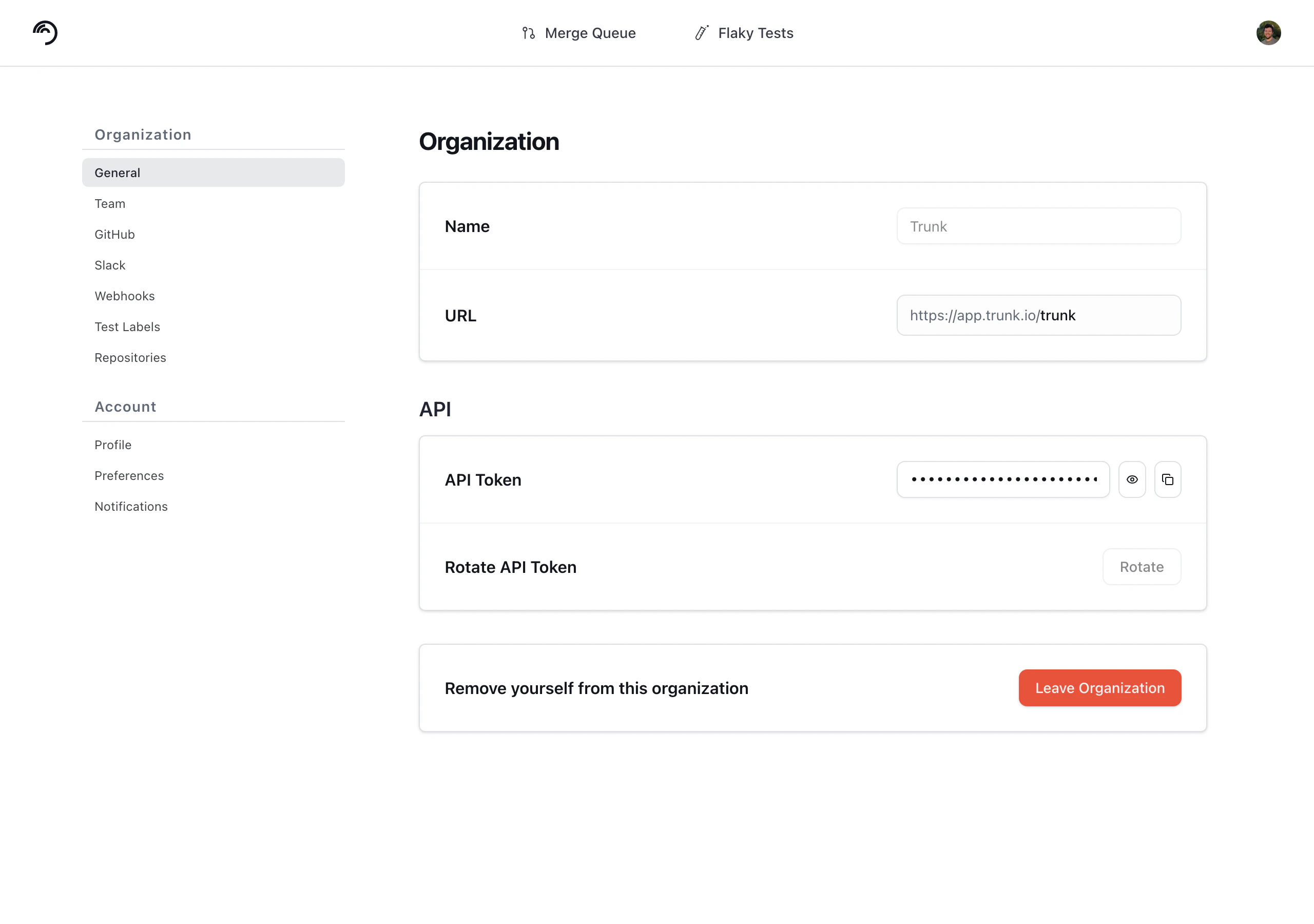
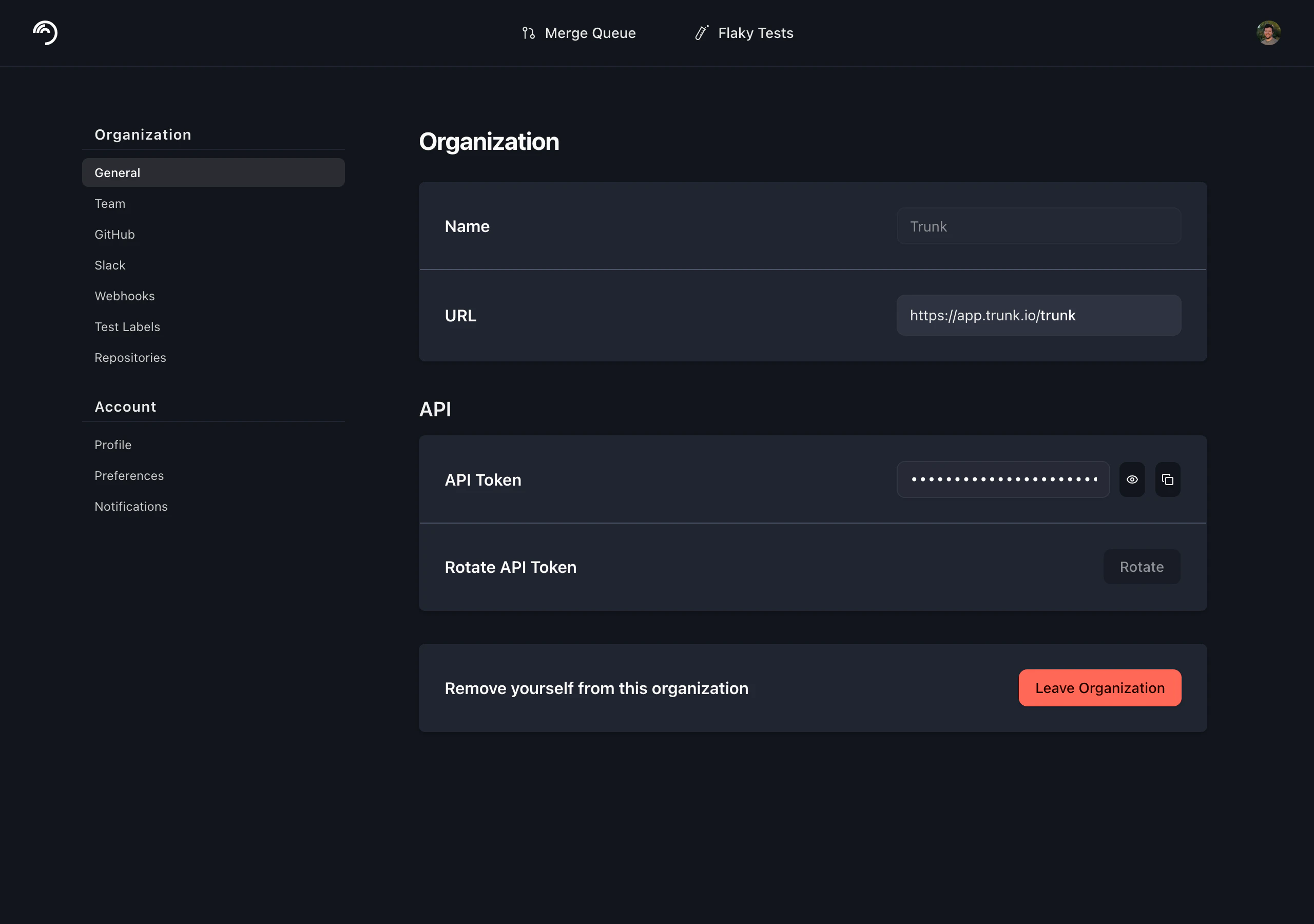
Make sure you are getting your Organization Slug, not the Organization Name.
Uploading Test Results
The uploaded tests are processed by Trunk periodically, not in real-time. Wait for at least an hour after the initial upload before they’re displayed in the Uploads tab. Multiple uploads are required before a test can be accurately detected as flaky.
swift test --xunit-output). You can upload each of these test report sources using the ./trunk-analytics-cli upload command like this:
- JUnit XML
- Bazel
- XCode
- Swift
Trunk can accept JUnit XMLs through the
--junit-paths argument:Variants
If you run the same tests across different environments or architectures, you can use variants to separate these runs into distinct test cases. This allows Trunk to detect environment-specific flakes. For example, a test for a mobile app might be flaky on iOS but stable on Android. Using variants, Trunk can isolate flakes on the iOS variant instead of marking the test as flaky across all environments. You can specify a variant during upload using the--variant option:
Upload an iOS variant
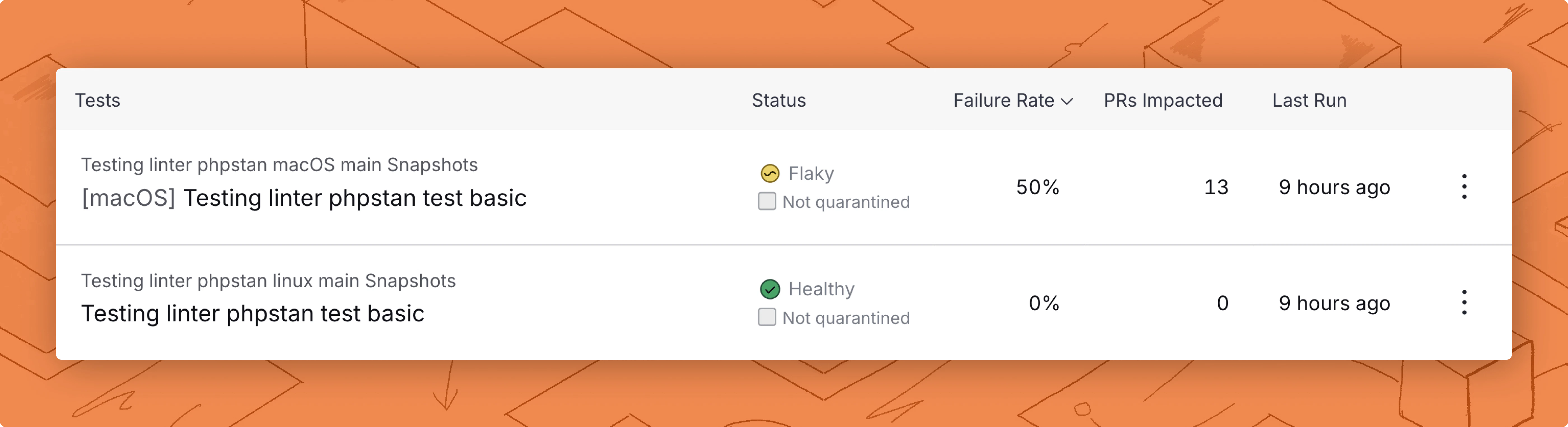
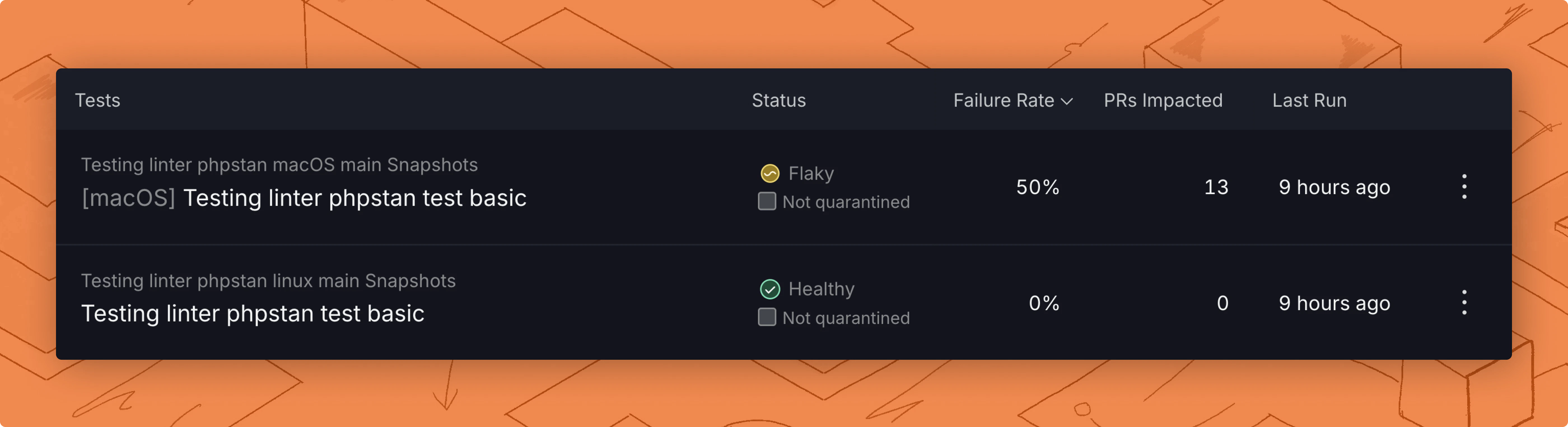
The same test, but the first is a macOS variant.
Test Collections
Test collections group tests so they can be configured and reviewed together, with their own flake detection and quarantining. Every upload names the collection it belongs to, by passing its ID with--test-collection-id:
Upload to a test collection
--org-url-slug is still required — the collection ID is an addition to it, not a replacement.
You can set the ID as the TRUNK_TEST_COLLECTION_ID environment variable instead, and the uploader action takes it as the test-collection-id input.
Each invocation uploads to a single collection. To send the same results to more than one collection, run the upload once per collection.
--hide-test-collection-links to keep the repository links.
Running and Quarantining Tests
You can also execute tests and upload results to Trunk in a single step using thetest command to wrap your test command.
This is especially useful for Quarantining, where the Trunk Analytics CLI will override the exit code of the test command if all failures can be quarantined, preventing flaky tests from failing your builds in CI.
- JUnit XML
- Bazel
- XCode
- Swift
Trunk can accept JUnit XMLs through the
--junit-paths argument:Service Availability and Graceful Degradation
Trunk Analytics CLI is designed to fail safe when our quarantine service is unavailable. Read more at Quarantine Service AvailabilityUpload failure vs test failure
We use theSOFTWARE exit code (70) if the upload fails.
If you use the test command and tests fail without the failures being quarantined, we return the provided exit code from the wrapped execution.
If you use the upload command, we return exit code FAILURE or the exit code provided with the --test_process_exit_code argument.
Validating reports locally
You can validate the test reports produced by your test frameworks before you set up Trunk in your CI jobs. This is currently only available for XML reports. You can run the validate command like this:validate command will output any problems with your reports so you can address them before setting up Trunk in CI.
Using custom CI systems
The CLI is preconfigured to work with a set ci-providers but can be used with any CI system by passing #environment-variables to the uploader.More information on using otherci.md is documented here.
Full command reference
Thetrunk command-line tool can upload and analyze test results. The trunk-analytics-cli command accepts the following subcommands:
The
upload and test commands accept the following options:
Memory OverheadRunning tests via
trunk-analytics-cli test adds negligible memory overhead.This subcommand is a thin wrapper around your existing test command and doesn’t modify or parallelize test execution.During execution, it:- Runs your provided test command directly.
- Records start and end times.
- Captures the exit code for quarantine decisions.