

*.atlassian.net)? See the Jira integration instead.
Jira Data Center support is enabled per organization. Contact support@trunk.io to turn it on for yours.
Requirements
- Jira Data Center 10.0 or later. Jira Server, and Data Center releases before 10.0, are not supported. Trunk checks the version when you connect.
- Reachable over HTTPS from the internet. Trunk connects to your site from its cloud, so the site must accept HTTPS connections from the public internet. Instances reachable only on a private network or VPN are not supported.
- An organization-level connection. Jira Data Center connects under Settings → Organization → Ticketing, and each test collection picks it as its default. It cannot be connected on a single repository’s settings.
Create a personal access token
Trunk authenticates with a Jira personal access token (PAT). Jira Data Center tokens have no scopes: a token acts as the user who created it, with that user’s permissions. We recommend creating it from a dedicated service account rather than a person’s account. Give the account these permissions on the project Trunk files tickets into:- Browse projects
- Create issues
- Edit issues
- Transition issues, plus any permission your workflow requires for the transitions Trunk uses to close and reopen tickets (commonly Resolve issues or Close issues)
- Add comments
- Assign issues, only if you set a default assignee
Connecting to Jira Data Center
- In the Trunk app, navigate to Settings → Organization → Ticketing.
- Click Add connection and select Jira Data Center.
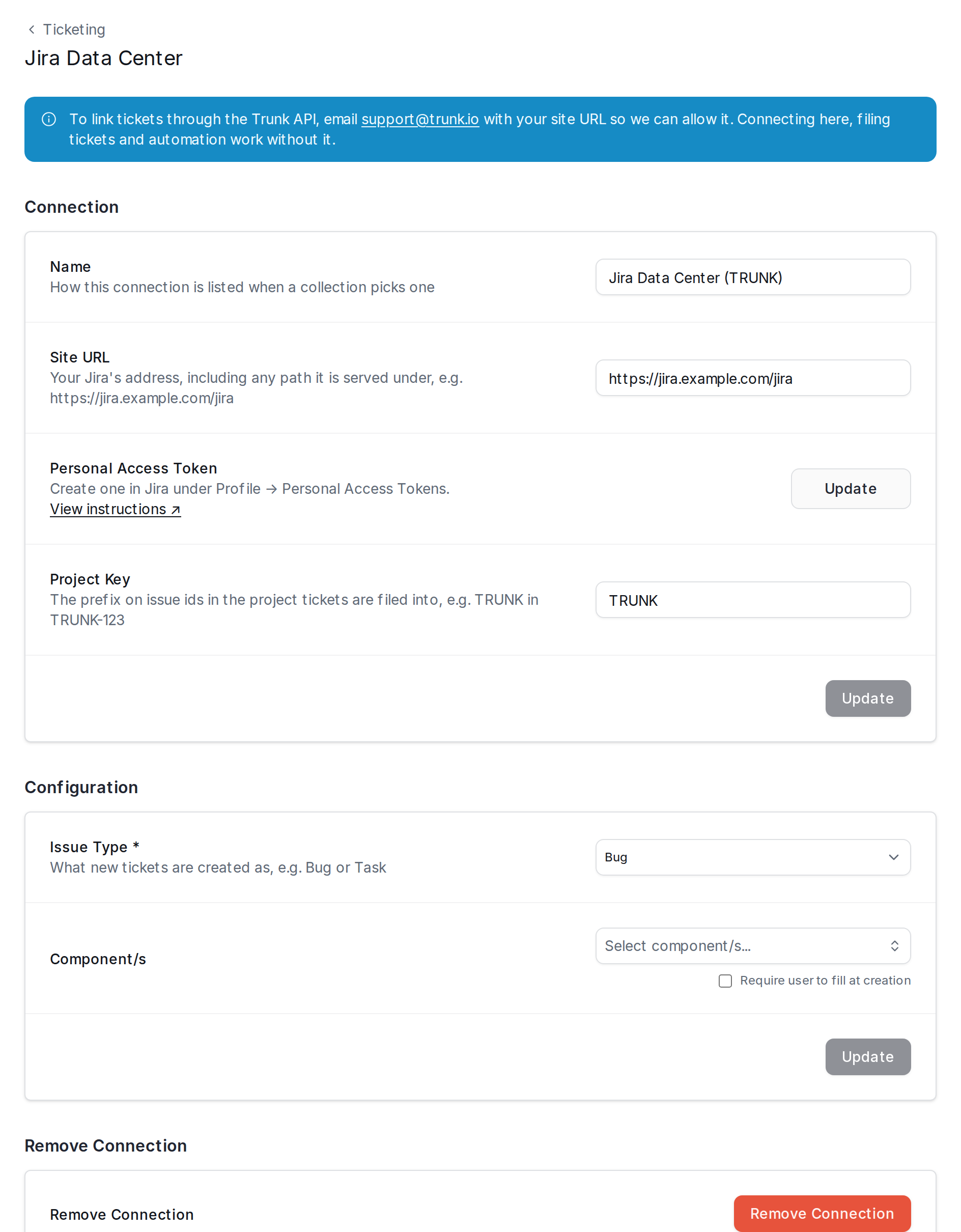
- Complete the Connection section and click Connect:
- In the Configuration section that appears, choose the Issue Type new tickets are created as, set any field defaults, and click Update.
Using the Trunk API with Jira Data Center
Creating tickets from the Trunk app, linking them, and automatic ticketing work as soon as you connect. To link tickets through the Link Ticket to Test Case API, email support@trunk.io with your site URL so we can allow it on our network; the connection form shows the same note.Ticket automation
Once the connection is configured, choose it as the default on each test collection that should file tickets, then enable automatic ticketing from the collection’s ticketing settings. Trunk closes and reopens tickets by moving them to the statuses you select there, using your project’s workflow.Creating and linking tickets
Creating a ticket from a test, and linking an existing ticket, work the same way as for Jira Cloud. Ticket descriptions are written in Jira wiki markup, so formatting renders natively in Jira Data Center.Custom fields
Like the Jira Cloud integration, Trunk reads the fields available for the selected issue type and lets you set a default for each supported field, or mark it to be filled in when a ticket is created.
User defaults are stored by Jira user key, so they keep working when a user is renamed. If a default user is deactivated, Trunk leaves that field empty rather than failing to create the ticket.
Security and data access
- Transport: Trunk connects only over HTTPS, verifies your site’s TLS certificate, does not follow redirects, and refuses to connect to private or internal network addresses.
- Token storage: the token is encrypted at rest and used only to call your site’s REST API.
- What Trunk reads:
- your site’s version;
- the token’s own user and its permissions on the configured project;
- the project’s issue types, field definitions, and statuses;
- for tickets Trunk created or that you linked: their key, summary, status, assignee, timestamps, change history, and available transitions;
- the project’s assignable users, when you pick a default user.
- What Trunk writes: new issues in the configured project (summary, description, issue type, and your configured field defaults); updates to those fields on tickets Trunk manages; status transitions with an explanatory comment when automation is enabled; and an internal issue property that prevents duplicate tickets if a creation is retried.
- What Trunk never does: delete issues, or change projects, workflows, permissions, or users.