

Connecting to Linear
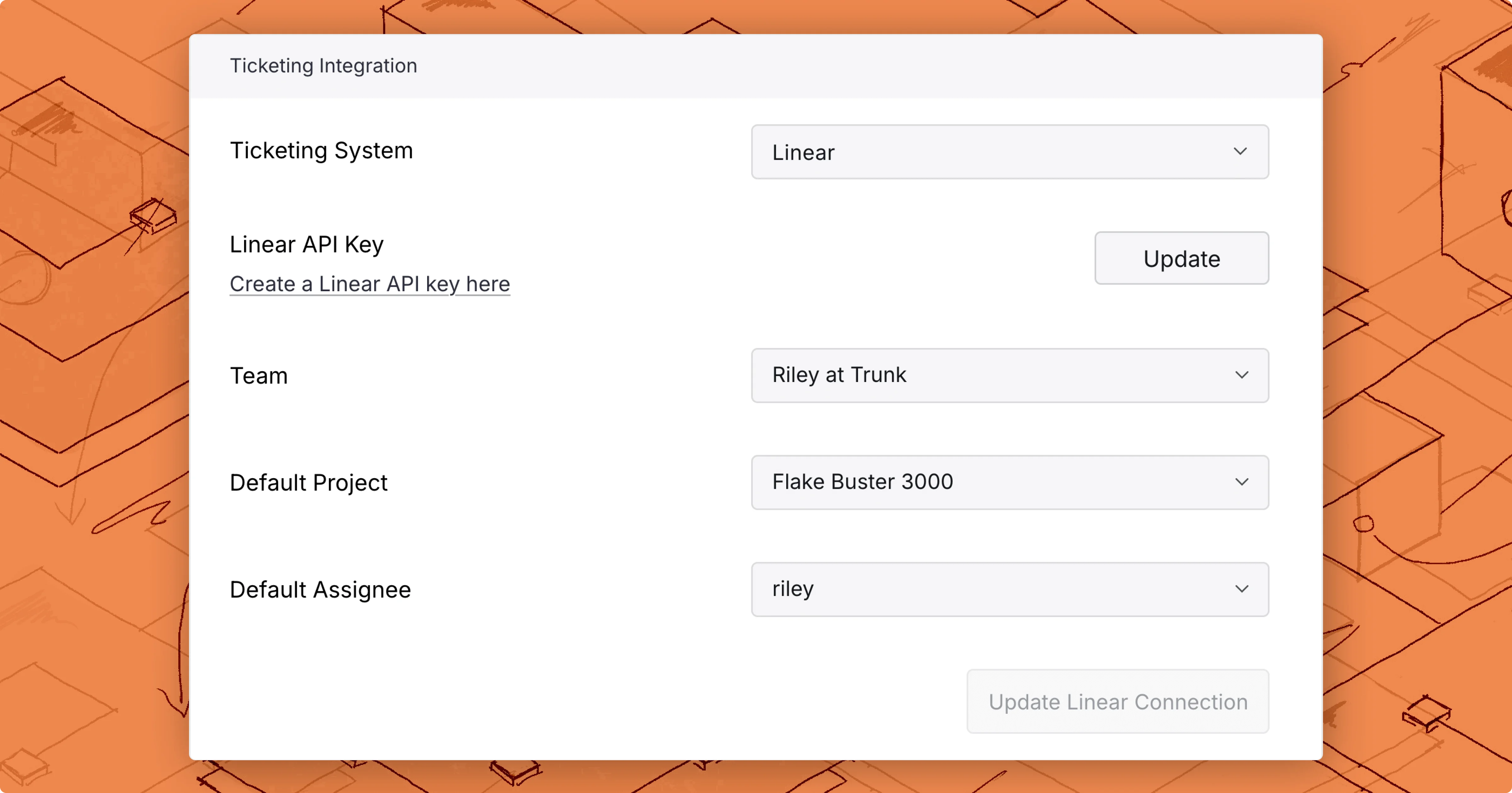
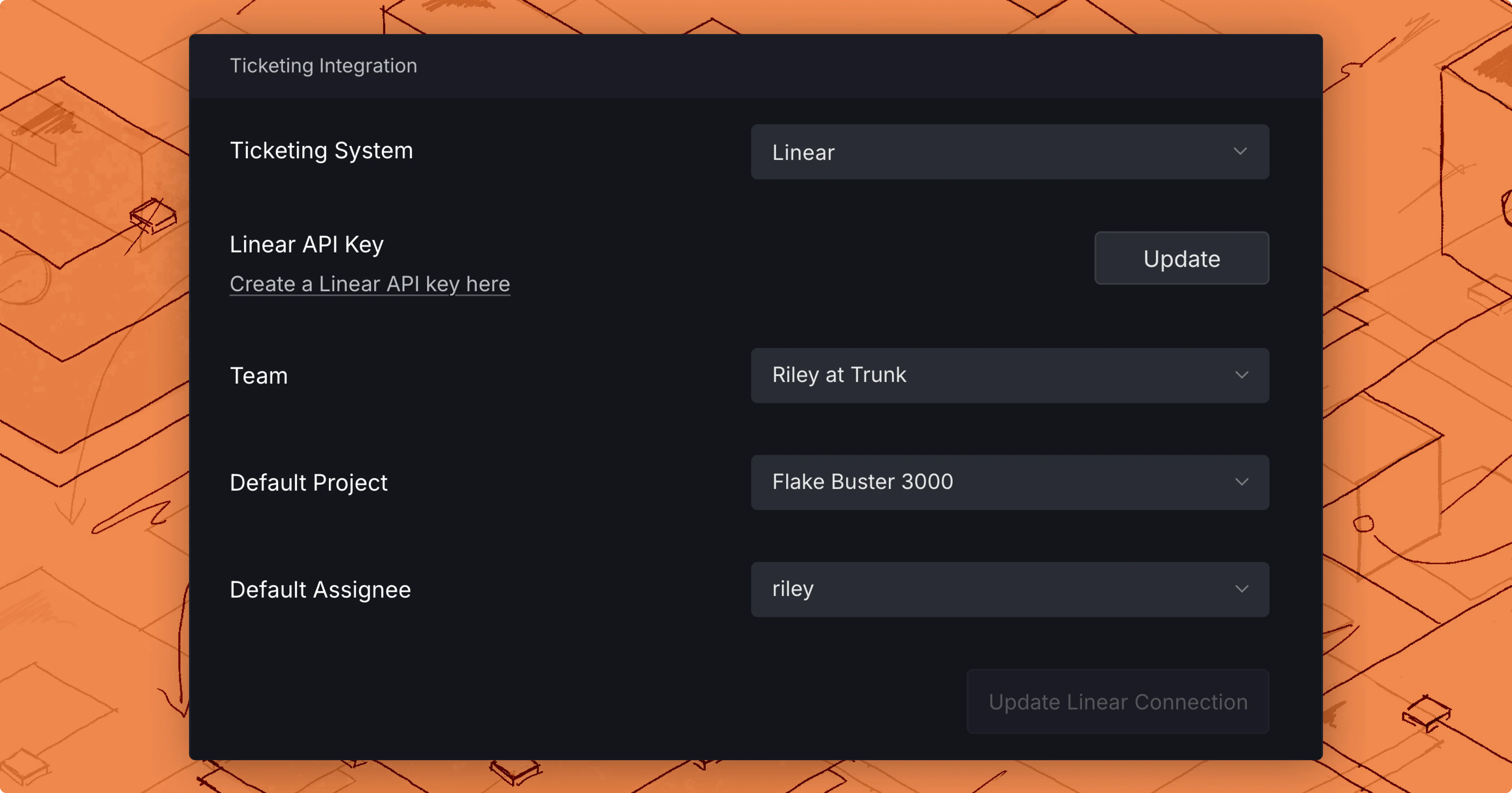
- Navigate to Settings → Organization → Ticketing. (On a repository, use Settings → Repositories → [your repository] → Ticketing instead.)
- Select Linear as your Ticketing System.
- Add a Linear API key
- Select a Team and Connect to Linear.
API Key permissions
The following project permissions must be granted to your Linear API key so Trunk can read, create, and assign tickets automatically:- Read
- Create issues
Ticket automation
Once the integration is fully configured, you can enable automatic ticketing from the same settings page: Trunk will create Linear issues when tests become flaky or broken, reopen them on regression, and close them when tests return to healthy.Create a new ticket
You can create a new ticket for any test listed in Flaky Tests. There are 2 ways to create a new ticket in the Flaky Tests dashboard:- Click on the options menu for any test case on the repo overview dashboard
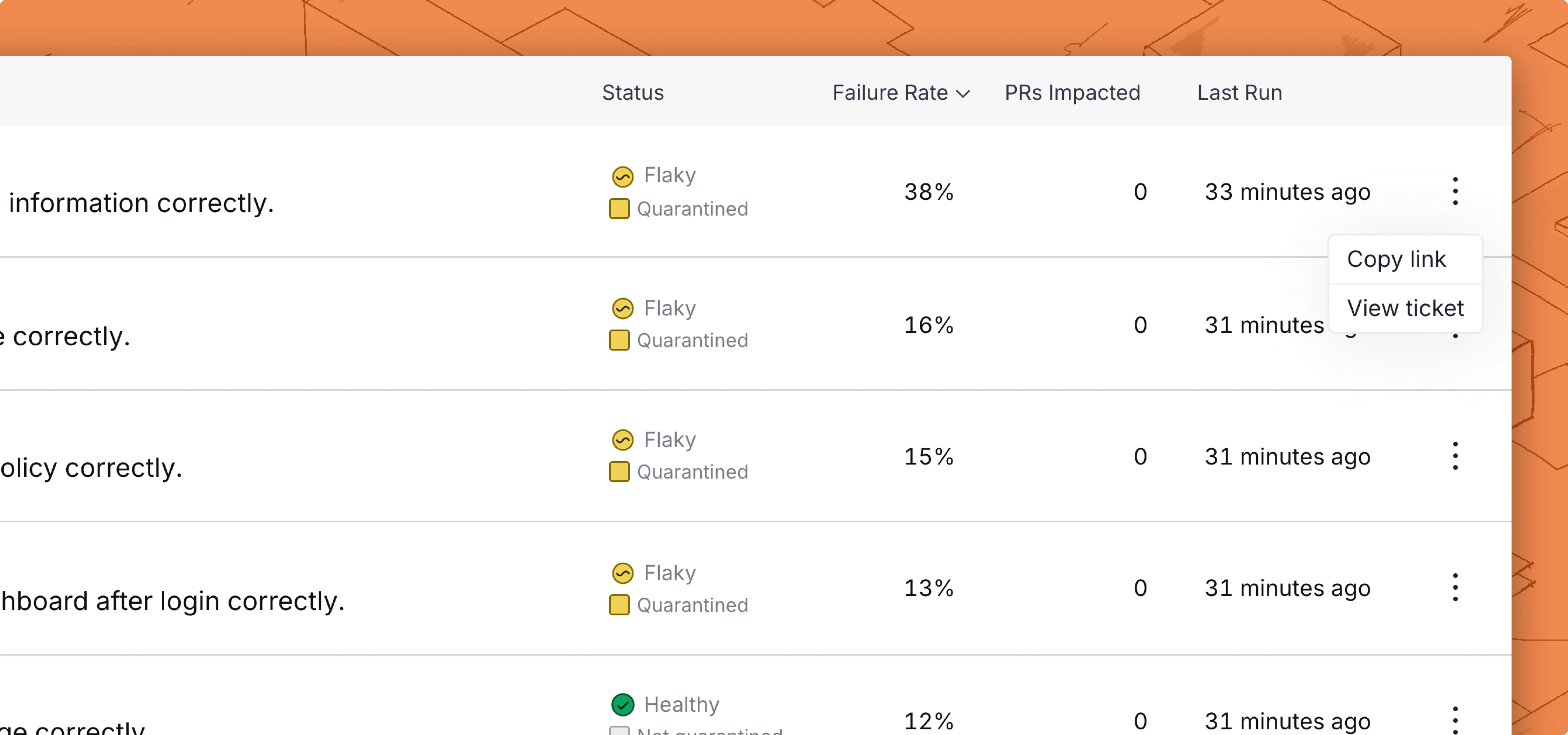
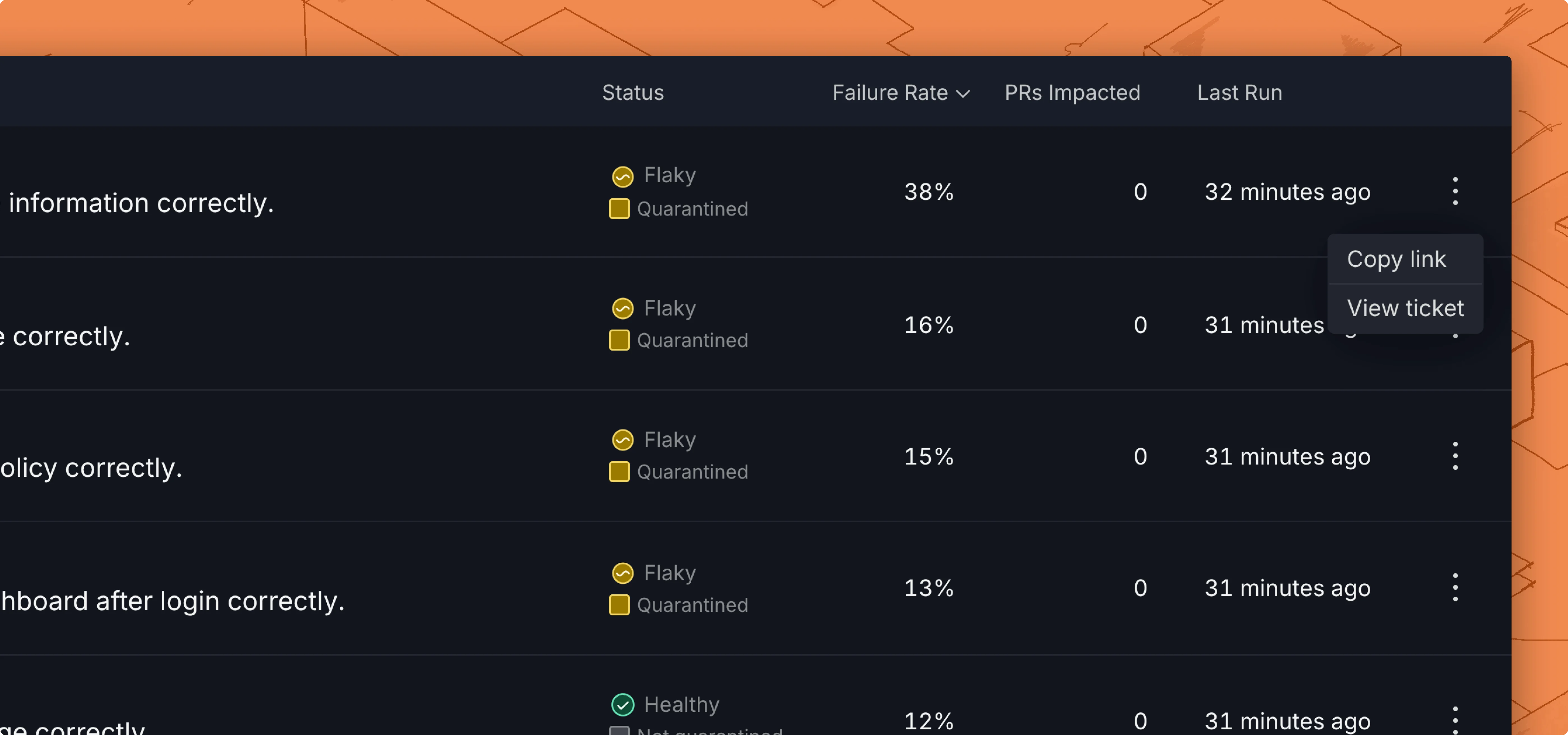
- Use the Create ticket button in the top left corner of the test case details page.
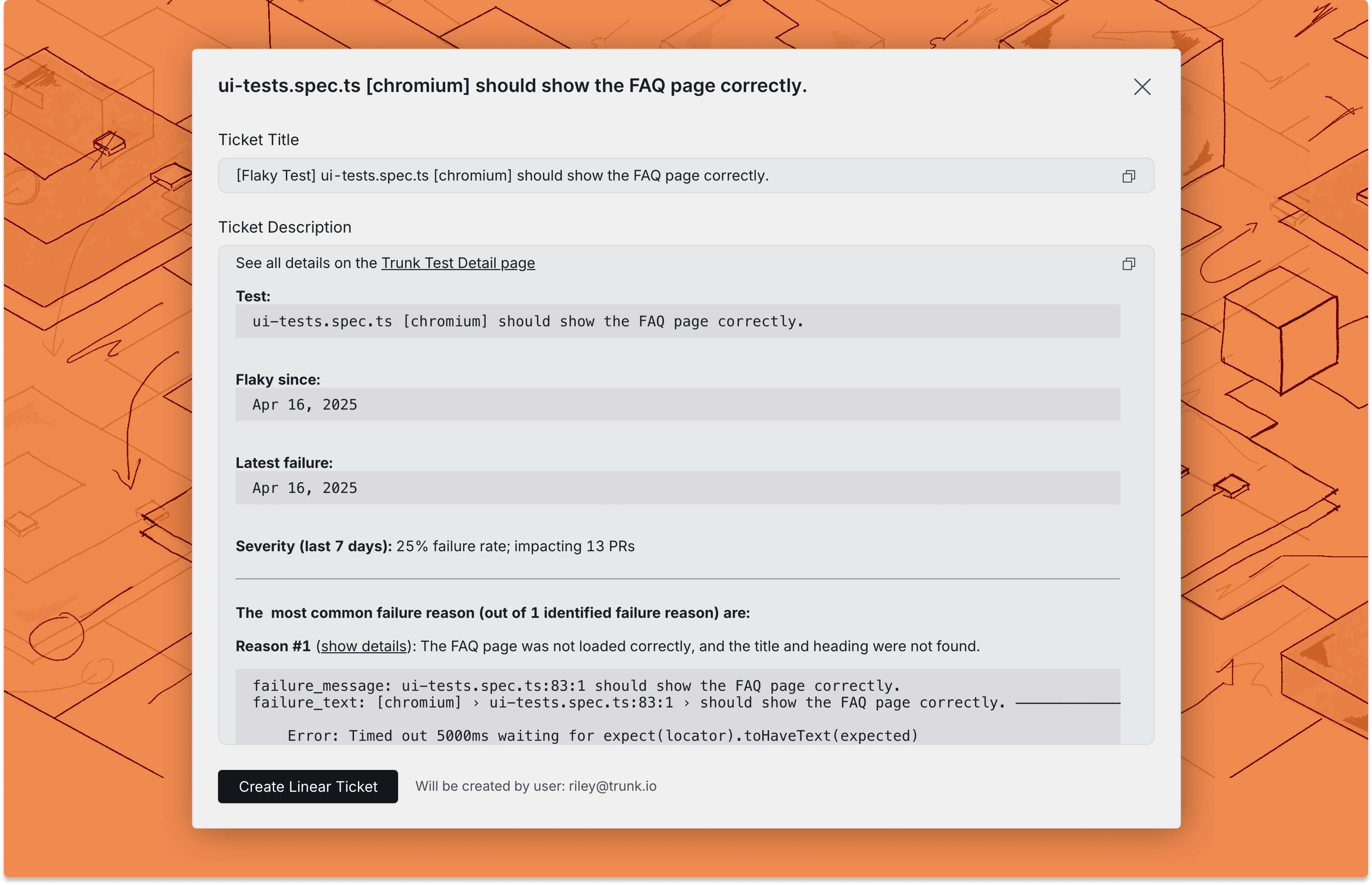
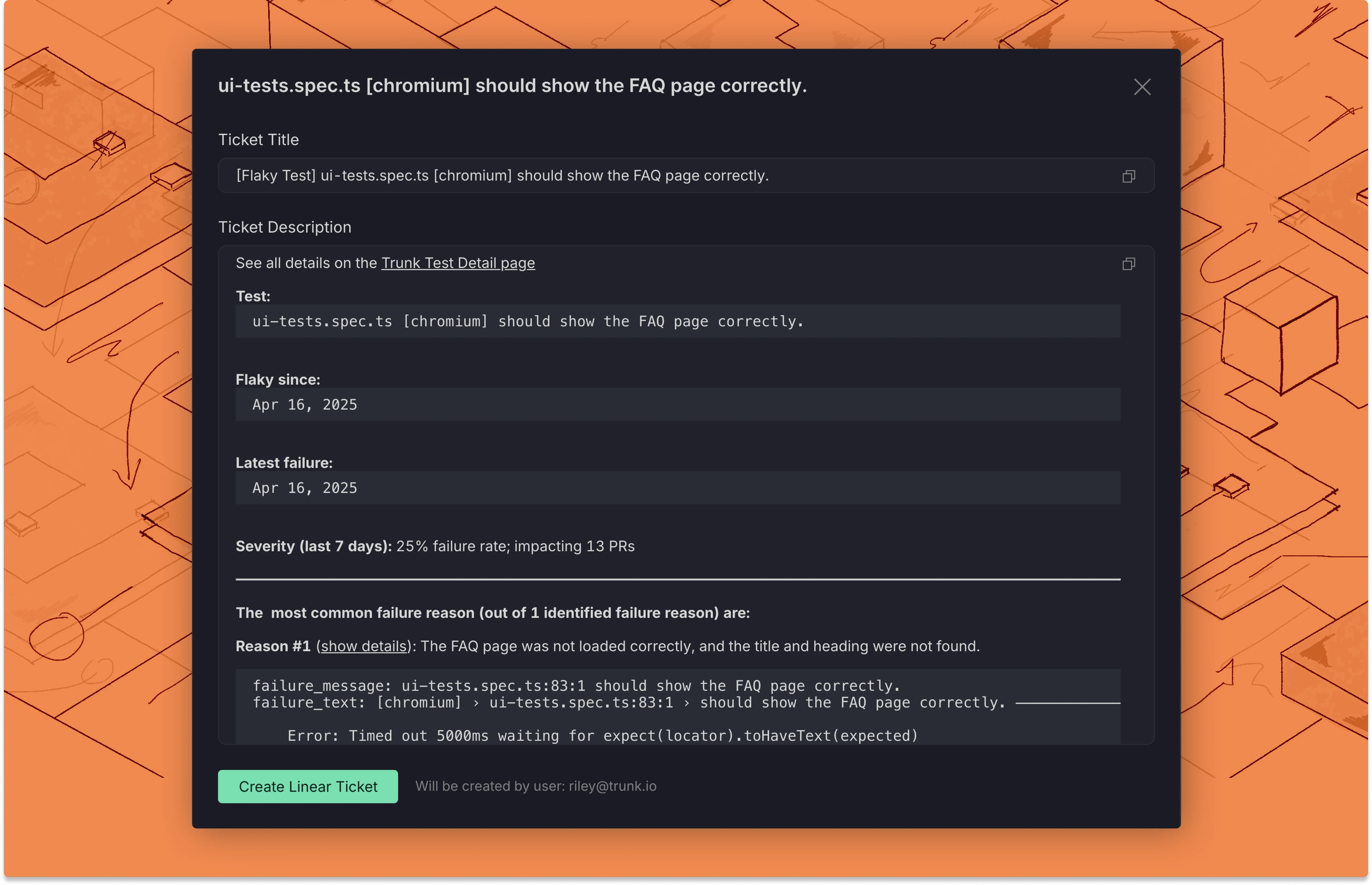
Create with Linear
If you are connected to Linear, you can click the Create Linear Ticket button at the end of the modal to automatically create a ticket with the configured team and any field defaults you have set. Note: You can use Flaky Tests webhooks to automate ticket creation, or if you need more control over how tickets are created in Linear. This integration is not required when using webhooks.Field defaults
After selecting a team, you can configure default values that pre-populate whenever a new Linear ticket is created from Flaky Tests:
Changing the selected team clears and reloads all field options automatically.
Field defaults are saved per repository. When you open the Create Ticket modal, all configured defaults are pre-filled and can be overridden before submitting.
Requiring fields at ticket creation
For each field, you can check Require user to fill at creation instead of setting a default value. When this option is on, the field appears in the Create Ticket modal as a required input. The Create Linear Ticket button stays disabled until the user fills every required field. This is useful for fields like Project or Assignee where the right value depends on the specific test being triaged and should not be pre-set globally.Link existing tickets to tests
If you already have a Linear ticket for a test, you can link it directly from the Test Details page without creating a new one. From the UI:- Open the test case details page.
- Click Link Ticket in the top-left corner.
- Enter the Linear ticket URL or ID and click Submit.